
Progic’s Instagram integration has evolved. Now, in addition to images, the solution is capable of displaying posts with video — including Reels — directly on Corporate TV screens. Previously, video posts were identified by the integration, but only the cover image was displayed. With this update, the video is now played on the screen.
⚠️ Limitation: Story-type posts are still not compatible with the integration. This update is available only on Progic Player 2.
Requirements to Use Instagram with Video
Previously, when a post contained a video, the Instagram integration could fetch the content, but only displayed the video’s cover image. Now, in compatible environments, the Instagram feed can display both image and video posts.
To ensure that video posts are displayed correctly, two main points must be considered:
- The client must use Progic Player 2
- The Instagram template must be prepared to display video posts
Clients still using Progic Player 1 will continue to have the previous limitation: Instagram posts with videos will display only the cover image.
Clients using Progic Player 2 can display videos, but must ensure that the template used to present Instagram posts is properly configured.
Along with this change, Progic Creative (the template configuration tool) has also evolved: a single template can now contain multiple layout versions, dynamically selected based on the content type of the post.
Post Type vs Layout Used
| Post Type | Layout Used |
|---|---|
| Title + text + QR Code + image | Layout optimized for images (cropping, custom styles) |
| Title + text + QR Code + video | Layout optimized for video (rectangular format, no cropping) |
This separation exists because images allow more flexible visual formats (cropping, frames, styles), while videos require more simple rectangular areas. Having distinct layouts ensures that each type of content is displayed in the best possible way.
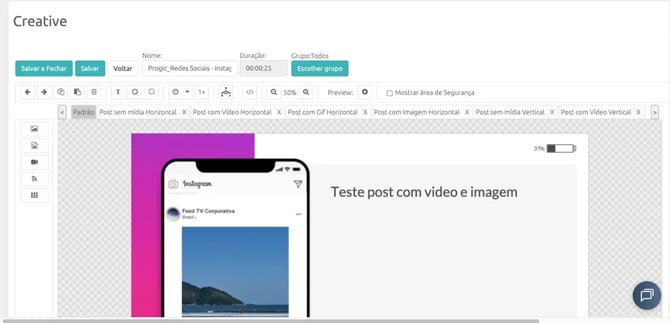
You can see the different template variations in the bar above the template.
How to Make an Instagram Template Compatible with Video Posts
There are two possible scenarios: using a ready-made template from Progic’s library or using a custom template.
Scenario 1: Using Templates from Progic’s Content Library
If you use an Instagram template from Progic’s ready-made content library, it is recommended to replace the current template with the latest version available. This version is already configured to display video posts.
Steps:
- Access the existing Instagram template
- In Creative, navigate to the content library
- Search for “Instagram”
- Select one of the available models in the Social Media category
- Save the template
After that, the Instagram feed will be configured to display video posts, as long as the environment uses Progic Player 2.
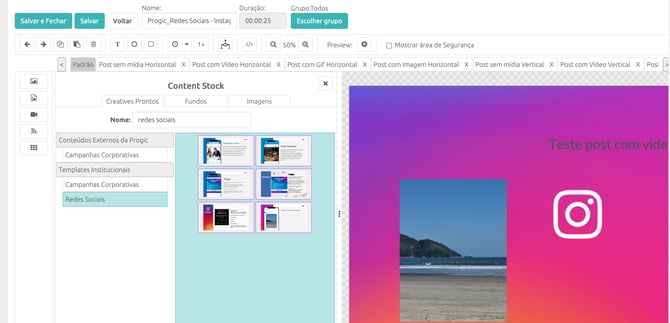
 on the left-hand sidebar to enter Content Stock, and search for “Instagram” in the search bar.
Scenario 2: Using Custom Templates
If you use a custom template (not from Progic’s library), you will need to edit it manually.
The goal is to add a new layout version specifically for posts containing videos.
Step-by-step
1. Access the template and locate layout tabs
When opening the template, you will see that Creative now displays multiple tabs. Each tab corresponds to a layout version for a different type of post. Usually, the template includes a “Default” tab for image posts.
2. Create the video layout from the default layout
Click on the “Horizontal video post” tab and then on the “Configure” button. This will automatically copy the layout from the “Default” tab, providing a base to work from.
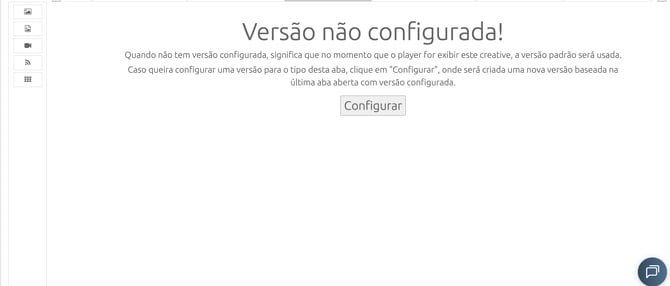
3. Replace the image component with the video component
In the copied layout, locate the image component and replace it with the video component according to the data structure:
- Image (remove)
Path:rss → channel → item → image → link
→ Displays the post image - Video (insert)
Path:rss → channel → item → media → url
→ Displays the post video
After inserting the new component, adjust its position and size so the video is properly framed on the screen.
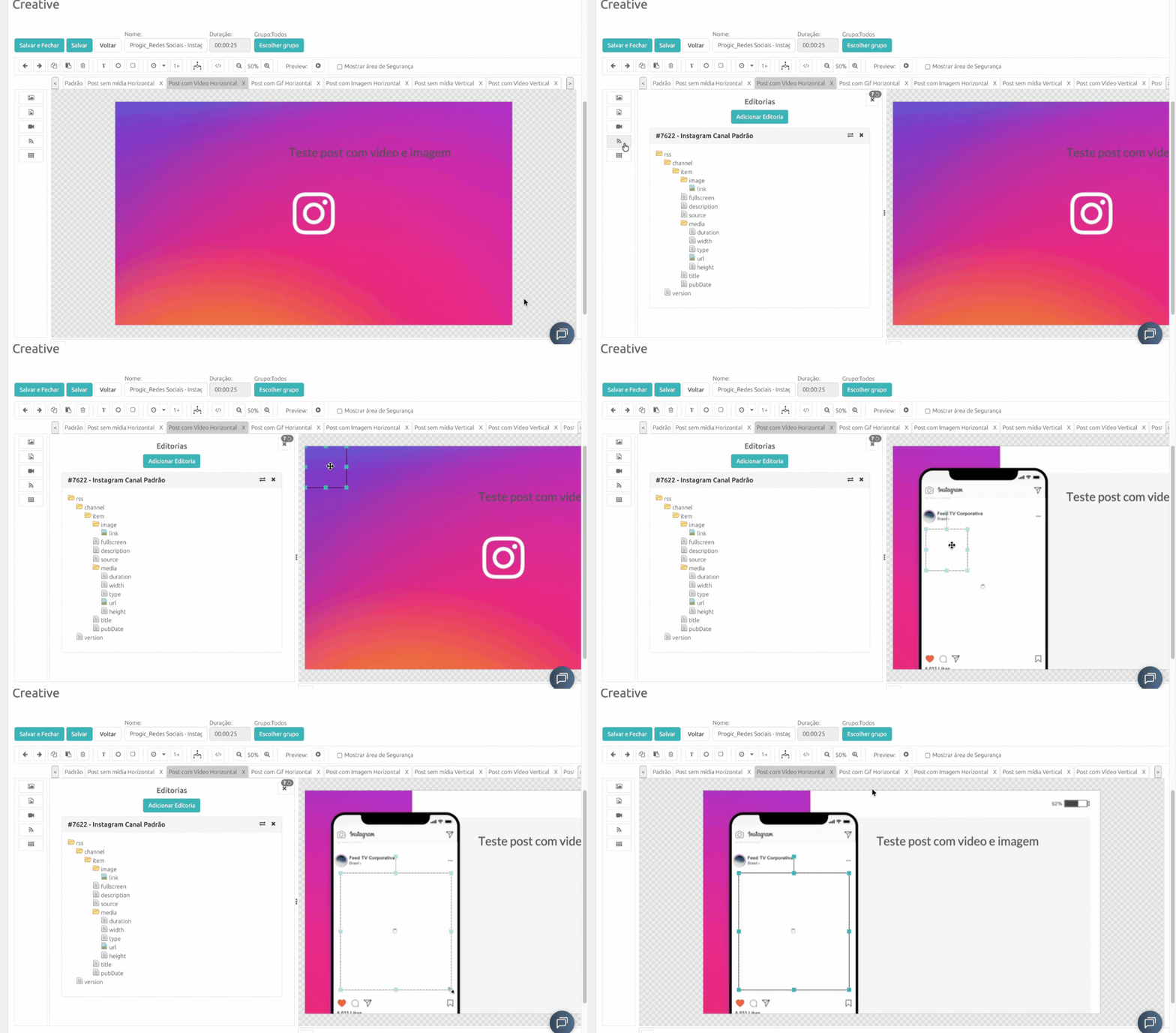
⚠️ Attention: In the current version of Progic Creative, it is not possible to preview videos during editing. The video component will appear empty in the editor — this is expected and does not indicate an error.
4. Save and check the playlist
Save the template in Creative. Then, confirm that it is associated with the playlist responsible for displaying Instagram content on the screens. A correctly configured template that is not included in the playlist will not be displayed.
Quick Summary
| Item | Detail |
|---|---|
| What’s new | Instagram video posts and Reels are now displayed on screens |
| Not compatible | Stories |
| Required player | Progic Player 2 |
| Player 1 | Still shows only cover images for video posts |
| Ready-made template | Replace with updated library version |
| Custom template | Create layout in “Horizontal video post” tab and replace image component with video |
| Creative preview | Videos do not appear during editing preview |