---
title: [Progic] How to Change the Date Format in a Creative
description: Need to change date formats in Progic Creative? Follow this guide to customize date displays from RSS feeds and data sources using default or custom formats.
---
[Skip to content](https://help.progic.com.br/en/how-to-change-the-date-format-in-a-creative#main-content)
- [English](https://help.progic.com.br/en/how-to-change-the-date-format-in-a-creative)
- [Español](https://help.progic.com.br/es/cómo-cambiar-el-formato-de-la-fecha-en-un-creative)
- [Português](https://help.progic.com.br/pt/como-alterar-o-formato-da-data-em-um-creative)
English
Show submenu for translations

Open main navigation
Close main navigation
- - [English](https://help.progic.com.br/en/how-to-change-the-date-format-in-a-creative)
- [Español](https://help.progic.com.br/es/cómo-cambiar-el-formato-de-la-fecha-en-un-creative)
- [Português](https://help.progic.com.br/pt/como-alterar-o-formato-da-data-em-um-creative)
English
Show submenu for translations
- [Contact us](https://ty05a.share.hsforms.com/2RIyv8iaWR9qVScnzVXKQSQ)
[Contact us](https://ty05a.share.hsforms.com/2RIyv8iaWR9qVScnzVXKQSQ)
How can we help you?
- There are no suggestions because the search field is empty.
1. [Central de Ajuda](https://help.progic.com.br/en?hsLang=en)
2. [Corporate TV](https://help.progic.com.br/en/corporate-tv?hsLang=en)
3. [Creative Resources & Editorial Sections](https://help.progic.com.br/en/corporate-tv?hsLang=en#creative-resources-editorial-sections)
# \[Progic\] How to Change the Date Format in a Creative
## Date Formatting: How to Standardize the Display of Data Sources in Creative
Starting from Manager version 2.9.0, it is possible to change the format of dates coming from Data Sources within Creative. Each RSS feed comes with a different date format, so our team developed a tool that allows dates to be standardized according to your needs.
To do this, you need to select the field where the date you want to format is located:
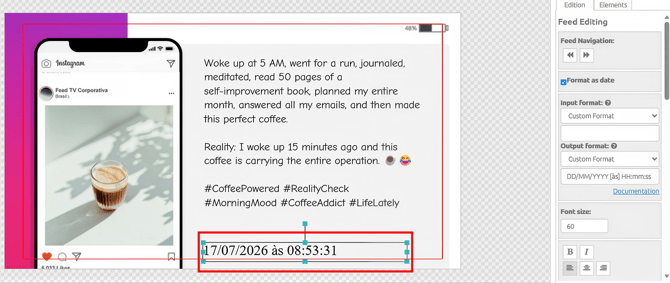
Notice that on the right side there is an option called **“Format as date”**. When selecting this option, the date is automatically changed to the system's default format, and you can choose other formats from the **“Output Format”** menu. For this example, we will use the **DD/MM/YYYY** format.
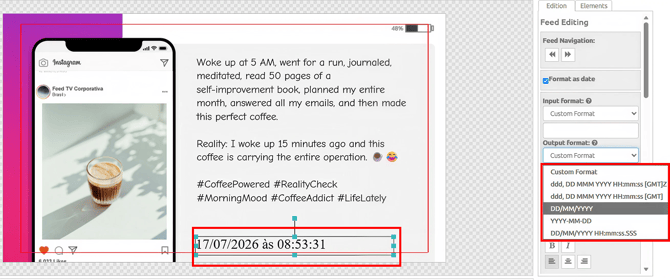
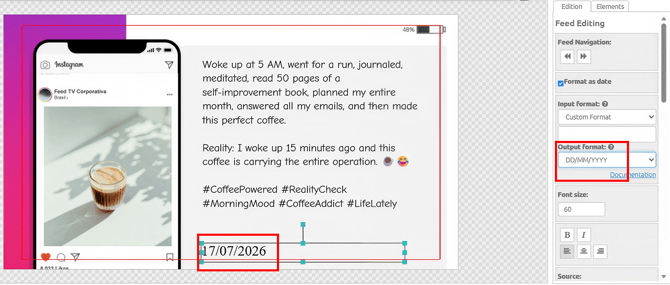
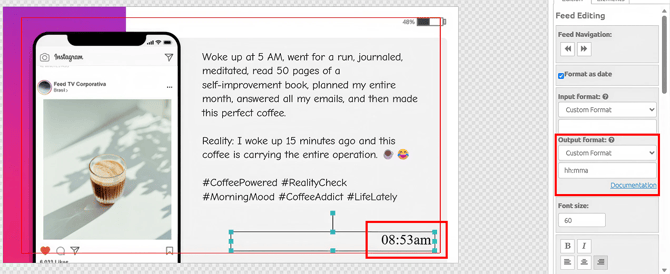
t is also possible to add a custom format if none of the available formats meet your needs.
In this example, we will display only the time in American format using the format **“hh:mma”**:
**Important:** If the system does not automatically identify the input date format, you will need to specify it using the **“Custom Format”** option and fill in the field with the correct format.
The list of all accepted formats can be found by clicking **“Documentation”** or below:
| **Input** | **Example** | **Description** |
| --- | --- | --- |
| YYYY | 2014 | Displays the elapsed time in years with 4 digits |
| YY | 14 | Displays the elapsed time in years with 2 digits |
| M or MM | 1..12 | Displays the elapsed time in months with 2 digits |
| MMM | Jan | Displays the abbreviated month name (clock only) |
| MMMM | January | Displays the month name (clock only) |
| D or DD | 1..31 | Displays the elapsed time in days with 2 digits |
| DDD or DDDD | 1..365 | Displays the day of the year (clock only) |
| H or HH | 0..23 | Displays the elapsed time in hours with 2 digits |
| h or hh | 0..12 | 12-hour time format used with A (clock only) |
| a or A | am pm | am or pm (clock only) |
| m or mm | 0..59 | Displays the elapsed time in minutes |
| \[\] | \[custom text\] | Fixed text that will appear in the date |
- [Corporate TV](https://help.progic.com.br/en/corporate-tv?hsLang=en#main-content)
- [Channels & Campaigns](https://help.progic.com.br/en/corporate-tv?hsLang=en#channels-campaigns)
- [Media and Uploads](https://help.progic.com.br/en/corporate-tv?hsLang=en#media-and-uploads)
- [Creative Resources & Editorial Sections](https://help.progic.com.br/en/corporate-tv?hsLang=en#creative-resources-editorial-sections)
- [Playlists](https://help.progic.com.br/en/corporate-tv?hsLang=en#playlists)
- [Connectivity & Network](https://help.progic.com.br/en/corporate-tv?hsLang=en#connectivity-network)
- [User Management & Access](https://help.progic.com.br/en/corporate-tv?hsLang=en#user-management-access)
- [Manager](https://help.progic.com.br/en/corporate-tv?hsLang=en#manager)
- [Broadcast and Monitoring](https://help.progic.com.br/en/corporate-tv?hsLang=en#broadcast-and-monitoring)
- [Platform](https://help.progic.com.br/en/platform?hsLang=en#main-content)
- [Integration and Security](https://help.progic.com.br/en/platform?hsLang=en#integration-and-security)
- [Settings and Permissions](https://help.progic.com.br/en/platform?hsLang=en#settings-and-permissions)
- [Management and Operations](https://help.progic.com.br/en/platform?hsLang=en#management-and-operations)
- [Tips and Best Practices](https://help.progic.com.br/en/platform?hsLang=en#tips-and-best-practices)
- [Apps](https://help.progic.com.br/en/apps?hsLang=en#main-content)
- [Mobile](https://help.progic.com.br/en/apps?hsLang=en#mobile)
- [Desktop](https://help.progic.com.br/en/apps?hsLang=en#desktop)
[](https://progic.com.br/?utm_source=hubspot)
Copyright © 2026, Progic