---
title: [Progic] Image Crop within a Custom Editorial Section
description: Learn how to set up automatic cropping in your editorial sections. Define square, rectangular or circular masks, adjust the zoom and make sure your images fit your feed layout perfectly.
---
[Skip to content](https://help.progic.com.br/en/image-crop-within-a-custom-editorial-section#main-content)
- [English](https://help.progic.com.br/en/image-crop-within-a-custom-editorial-section)
- [Español](https://help.progic.com.br/es/recorte-crop-de-imagen-dentro-de-una-editorial-propia)
- [Português](https://help.progic.com.br/pt/crop-recorte-de-imagem-dentro-de-uma-editoria-própria)
English
Show submenu for translations

Open main navigation
Close main navigation
- - [English](https://help.progic.com.br/en/image-crop-within-a-custom-editorial-section)
- [Español](https://help.progic.com.br/es/recorte-crop-de-imagen-dentro-de-una-editorial-propia)
- [Português](https://help.progic.com.br/pt/crop-recorte-de-imagem-dentro-de-uma-editoria-própria)
English
Show submenu for translations
- [Contact us](https://ty05a.share.hsforms.com/2RIyv8iaWR9qVScnzVXKQSQ)
[Contact us](https://ty05a.share.hsforms.com/2RIyv8iaWR9qVScnzVXKQSQ)
How can we help you?
- There are no suggestions because the search field is empty.
1. [Central de Ajuda](https://help.progic.com.br/en?hsLang=en)
2. [Corporate TV](https://help.progic.com.br/en/corporate-tv?hsLang=en)
3. [Creative Resources & Editorial Sections](https://help.progic.com.br/en/corporate-tv?hsLang=en#creative-resources-editorial-sections)
# \[Progic\] Image Crop within a Custom Editorial Section
## Editorial Section Customization: How to Configure Crop Masks and Image Cropping
When creating or editing an editorial section, you can define a crop mask for the images published in it. This setting lets you standardize the visual appearance of publications, ensuring that all images are displayed in the desired format.
**Important:** The crop setting is optional. By default, the editorial section is created with a mask of **400 x 400 pixels**.
**Configuring the crop size**
- On the **Internal Editorial Section Settings** screen, click the last field: **Image**
- Locate the **Width** and **Height** options of the crop mask.
- Enter the desired dimensions.
- Save the changes.
**Example**

To create a square crop, configure:
- Under **Crop type**, select **Rectangle**
- Width: 200 px
- Height: 200 px
Once configured, images added to publications in this editorial section will use the defined crop area.

**Available crop types**
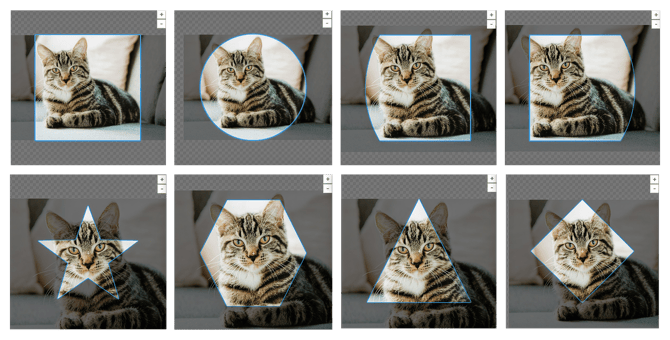
In addition to the mask size, you can also define the crop shape using the **Crop type** field.

The available shapes are:
| Crop types | Description |
| --- | --- |
| Rectangle | Creates square or rectangular crops. |
| Circle | Ideal for profile photos and circular highlights. |
| Custom | Allows the use of specific masks defined in the platform. |
| Rounded left border | Rounds only the left side of the image. |
| Rounded right border | Rounds only the right side of the image. |
| Star | Crops the image into a star shape. |
| Hexagon | Crops the image into a hexagonal shape. |
| Triangle | Crops the image into a triangular shape. |
| Diamond | Crops the image into a diamond shape. |
**Example results**
### Adjusting the image during cropping
When adding an image to a publication, the crop area defined by the editorial section will be displayed automatically.
While adjusting the image, you can:
- Expand the image for a better fit;
- Use the mouse scroll wheel to zoom in or out;
- Use the **+** and **−** buttons to control the zoom;
- Reposition the image within the crop area to set the desired framing;

- [Corporate TV](https://help.progic.com.br/en/corporate-tv?hsLang=en#main-content)
- [Channels & Campaigns](https://help.progic.com.br/en/corporate-tv?hsLang=en#channels-campaigns)
- [Media and Uploads](https://help.progic.com.br/en/corporate-tv?hsLang=en#media-and-uploads)
- [Creative Resources & Editorial Sections](https://help.progic.com.br/en/corporate-tv?hsLang=en#creative-resources-editorial-sections)
- [Playlists](https://help.progic.com.br/en/corporate-tv?hsLang=en#playlists)
- [Connectivity & Network](https://help.progic.com.br/en/corporate-tv?hsLang=en#connectivity-network)
- [User Management & Access](https://help.progic.com.br/en/corporate-tv?hsLang=en#user-management-access)
- [Manager](https://help.progic.com.br/en/corporate-tv?hsLang=en#manager)
- [Broadcast and Monitoring](https://help.progic.com.br/en/corporate-tv?hsLang=en#broadcast-and-monitoring)
- [Platform](https://help.progic.com.br/en/platform?hsLang=en#main-content)
- [Integration and Security](https://help.progic.com.br/en/platform?hsLang=en#integration-and-security)
- [Settings and Permissions](https://help.progic.com.br/en/platform?hsLang=en#settings-and-permissions)
- [Management and Operations](https://help.progic.com.br/en/platform?hsLang=en#management-and-operations)
- [Tips and Best Practices](https://help.progic.com.br/en/platform?hsLang=en#tips-and-best-practices)
- [Apps](https://help.progic.com.br/en/apps?hsLang=en#main-content)
- [Mobile](https://help.progic.com.br/en/apps?hsLang=en#mobile)
- [Desktop](https://help.progic.com.br/en/apps?hsLang=en#desktop)
[](https://progic.com.br/?utm_source=hubspot)
Copyright © 2026, Progic