---
title: [Progic] Screen Capture PNG
description: Learn how to configure PNG capture settings and use color replacement to add transparency to your images for corporate TV display templates.
---
[Skip to content](https://help.progic.com.br/en/screen-capture-png#main-content)
- [English](https://help.progic.com.br/en/screen-capture-png)
- [Español](https://help.progic.com.br/es/screen-capture-png)
- [Português](https://help.progic.com.br/pt/screen-capture-png)
English
Show submenu for translations

Open main navigation
Close main navigation
- - [English](https://help.progic.com.br/en/screen-capture-png)
- [Español](https://help.progic.com.br/es/screen-capture-png)
- [Português](https://help.progic.com.br/pt/screen-capture-png)
English
Show submenu for translations
- [Contact us](https://ty05a.share.hsforms.com/2RIyv8iaWR9qVScnzVXKQSQ)
[Contact us](https://ty05a.share.hsforms.com/2RIyv8iaWR9qVScnzVXKQSQ)
How can we help you?
- There are no suggestions because the search field is empty.
1. [Central de Ajuda](https://help.progic.com.br/en?hsLang=en)
2. [Corporate TV](https://help.progic.com.br/en/corporate-tv?hsLang=en)
3. [Manager](https://help.progic.com.br/en/corporate-tv?hsLang=en#manager)
# \[Progic\] Screen Capture PNG
## Mastering the PNG Format: Superior Quality and Transparency in Your Captures
Capturing in **PNG** provides better quality, but the file size is much larger than JPG. If your device has trouble displaying PNG images, try disabling this option.
**PNG** images offer the possibility of transparent areas. This option allows up to two colors in the captured image to be replaced with transparency. Typically, the “background” colors of the captured image are chosen to be replaced with transparency. This is useful when you want the captured image to be displayed over another background image or video in the display template, creating the best possible visual harmony.
To enable the PNG option and replace a color with transparency, you must access the optional capture settings.

To use transparency, you must define the capture format as PNG and then set the color to be applied. To do this, select Color 1 and define which color will be replaced. Note that it is possible to set a tolerance level.
This tolerance is the percentage range of the selected color (Color 1) to which transparency will be applied, either above or below the chosen value.
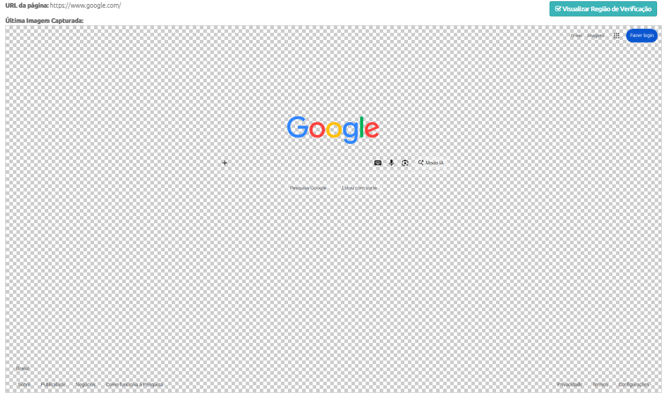
Note that after the capture is saved and processed, the image is already saved as **PNG** with the transparency applied to the defined color.
- [Corporate TV](https://help.progic.com.br/en/corporate-tv?hsLang=en#main-content)
- [Channels & Campaigns](https://help.progic.com.br/en/corporate-tv?hsLang=en#channels-campaigns)
- [Media and Uploads](https://help.progic.com.br/en/corporate-tv?hsLang=en#media-and-uploads)
- [Creative Resources & Editorial Sections](https://help.progic.com.br/en/corporate-tv?hsLang=en#creative-resources-editorial-sections)
- [Playlists](https://help.progic.com.br/en/corporate-tv?hsLang=en#playlists)
- [Connectivity & Network](https://help.progic.com.br/en/corporate-tv?hsLang=en#connectivity-network)
- [User Management & Access](https://help.progic.com.br/en/corporate-tv?hsLang=en#user-management-access)
- [Manager](https://help.progic.com.br/en/corporate-tv?hsLang=en#manager)
- [Broadcast and Monitoring](https://help.progic.com.br/en/corporate-tv?hsLang=en#broadcast-and-monitoring)
- [Installation & Initial Configuration](https://help.progic.com.br/en/corporate-tv?hsLang=en#installation-initial-configuration)
- [Platform](https://help.progic.com.br/en/platform?hsLang=en#main-content)
- [Integration and Security](https://help.progic.com.br/en/platform?hsLang=en#integration-and-security)
- [Settings and Permissions](https://help.progic.com.br/en/platform?hsLang=en#settings-and-permissions)
- [Management and Operations](https://help.progic.com.br/en/platform?hsLang=en#management-and-operations)
- [Tips and Best Practices](https://help.progic.com.br/en/platform?hsLang=en#tips-and-best-practices)
- [Apps](https://help.progic.com.br/en/apps?hsLang=en#main-content)
- [Mobile](https://help.progic.com.br/en/apps?hsLang=en#mobile)
- [Desktop](https://help.progic.com.br/en/apps?hsLang=en#desktop)
[](https://progic.com.br/?utm_source=hubspot)
Copyright © 2026, Progic