
The Content Library, also called Content Stock, brings together ready-made content from Progic and partners for your schedule. It saves production time and helps keep the TV varied, following corporate TV best practices.
In this article, you will learn how to:
- Understand the types of content available in the Progic Library.
- Find a piece of content and bring it into your account.
- Create a campaign from an institutional template.
- Understand the relationship between templates and editorials.
Types of content available
The Library is organized into four types, each with its own purpose.
Progic external content
Ready-made content produced and maintained by a team of Progic specialists, both text and visual identity. You just choose it and add it to the schedule. It cannot be edited.
There are topics for almost everything: corporate content, health awareness months, seasonal content, corporate series, workplace safety, content for operational areas, Portuguese language and travel tips, fun facts and business etiquette, among others.
Partner content
Content provided by partners integrated with the platform, such as news, weather forecasts and lottery results. It updates on its own and, like Progic external content, cannot be edited.
Institutional templates
Ready-made models for your company to publish its own communications, such as Yellow September, Father's Day, corporate campaigns, awareness months, or introducing the members of the safety committee (CIPA). Progic provides the layout and you add the content.
ℹ️ When you bring an institutional template into your account, the platform automatically creates an editorial linked to it, with sample posts. You don't need to link them manually.
Bumpers
Ready-made MP4 videos, such as a bumper about preventive health checkups. They don't use an editorial or posts: they go straight into the playlist.
What you get with each type
| Type | What is created in your account | Can you edit it? |
|---|---|---|
| Progic external | A Creative under Content > Media | No |
| Partner | A Creative under Content > Media | No |
| Institutional template | A Creative under Content > Media and an editorial under Content > Editorials | Yes: you fill in the posts and can customize the layout |
| Bumper | An MP4 video under Content > Media | No |
Which one to use
| If you need | Use |
|---|---|
| Ready-made, up-to-date content with no work | Progic external or partner content |
| Communications with the company’s identity | Institutional template |
| A ready-made video in the schedule | Bumper |
| Seasonal campaigns, such as Yellow September or Mother’s Day | Institutional template, bumper or external content, depending on who will write the text |
💡 Mix content on varied topics, such as health, travel and fun facts, with your institutional communication. A diverse schedule attracts and holds employees' attention better.
ℹ️ There is also content in English and Spanish, and Progic publishes new content often.
How to find and choose content
- Go to Content > Media and click Creative.
- In the Creative side menu, click the last icon, Content Stock.
- Browse the categories or use the search box by name. When you search for a topic, such as "mother" or "Yellow September", the results may include external content, institutional templates and bumpers.
- Click a piece of content to maximize it. Use the original-quality preview and the feed navigation to read all the posts before deciding.
- With the chosen content maximized, click Save and Close. Whatever is maximized is what goes to your account.
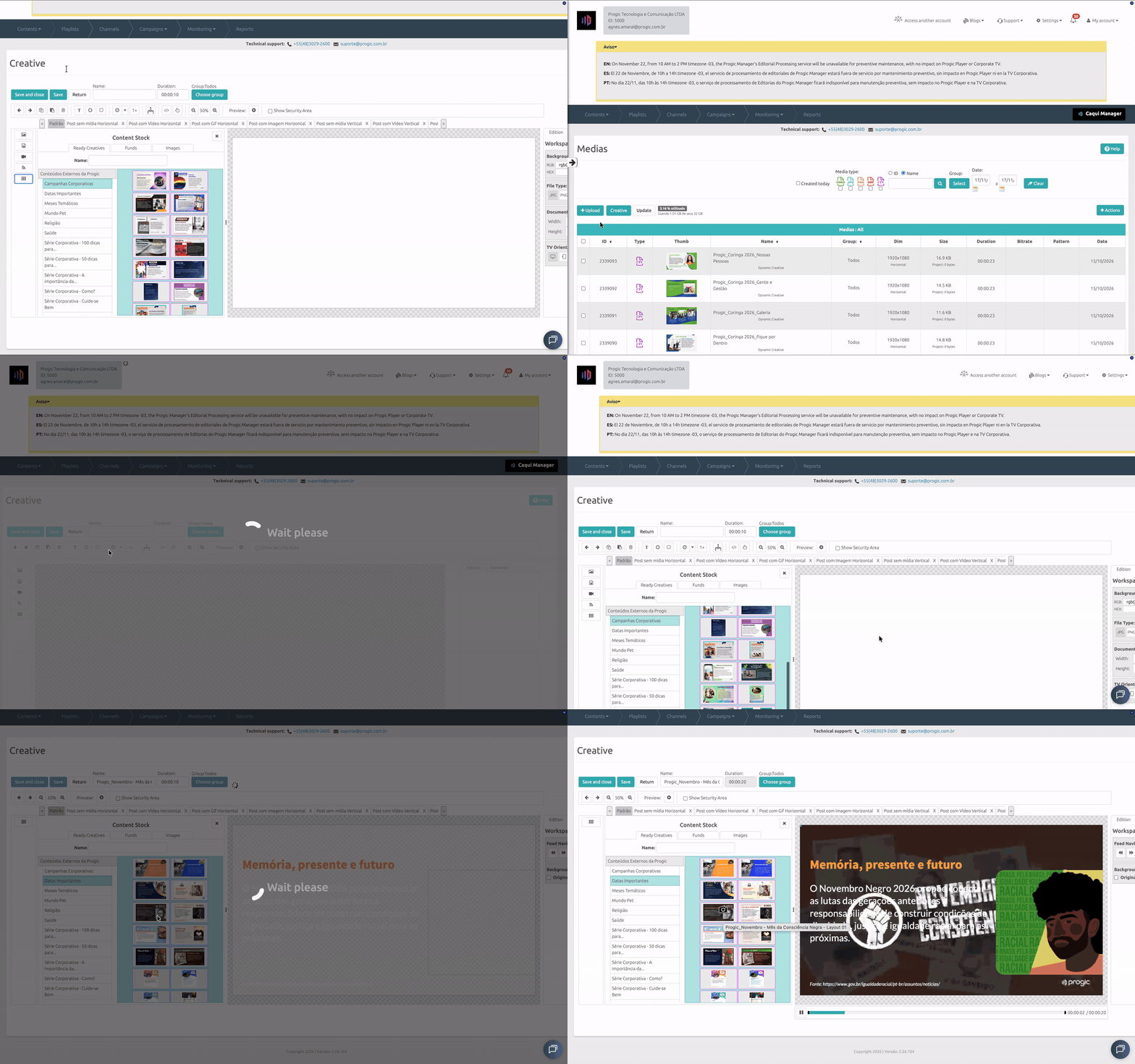
The content appears under Content > Media, ready to go into a playlist.
Creating a campaign from an institutional template
- In Content Stock, open the institutional templates category or search by topic.
- Maximize the template and check the layout in the preview. It’s worth validating the choice with your team.
- Click Save and Close.
When you're done:
- The template’s Creative will be under Content > Media.
- A matching editorial is created under Content > Editorials, for example "CIPA Members".
- The two are already linked. Just open the editorial and fill in your posts.
Understanding templates and editorials
This is one of the most important concepts on the platform.
| Template (Creative) | Editorial | |
|---|---|---|
| What it is | The look of the communication | The place where posts are created |
| What it stores | Colors, fonts, layout, images and visual organization | Titles, texts, images, videos and user posts |
In other words: the editorial holds the content, and the template defines how it appears on the TV. A post created in the editorial is shown with the template's layout.
Customizing a template
After bringing an institutional template into your account, you can customize colors, fonts, text size, element positions and background images, applying your company's visual identity.
Frequently asked questions
My posts don't appear on the TV. What might have happened?
Editorial posts only appear on the TV if the Creative linked to the editorial is in a playlist or sub-playlist in the schedule. Also check the posts' validity period and the selected groups.
Next steps
To show the campaign on the TVs, see How to publish communication campaigns on TVs.
Related articles
- [Progic] How to build a collaborative campaign with a QR Code
- [Progic] How to publish communication campaigns on TVs
- [Progic] How to Use Ready-Made Content in Creative – ContentStock
- [Progic] What Progic Ready-Made Content is and how to use it
- [Progic] What a Collaborative Editorial is and when to use it
- [Progic] Troubleshooting display and sync issues
- [Progic] Instructions for adding content to the Playlist