
When should you use Web Page Display?
Use this feature to display pages available through a public URL, especially when the content needs to be updated more frequently on the player.
- Pages available on the internet;
- Public dashboards;
- Other URL-accessible content that does not require authentication.
Important: Web Page Display does not perform login. If the page contains protected information, it must be public, or you will need to use another capture option that supports authentication.
How does content updating work?
When a template containing a Web Page Display is executed, the player sends a request to the configured URL and displays the content at that moment.
The content is updated according to the template execution on the player, as long as the device is connected to the internet.
This behavior is different from Screen Capture, where captures are processed according to an update interval and placed in a queue before being generated.
How to use a Web Page?
- Open the Content menu in Progic Manager
- Click Media
- On the Media screen, click the Creative button to open the editor
- On the editor toolbar, click the </> (Insert Web Page) icon.
- A block called "Web page display area" will appear in the workspace. You can drag and resize this block until it occupies the space the page should have on the screen.
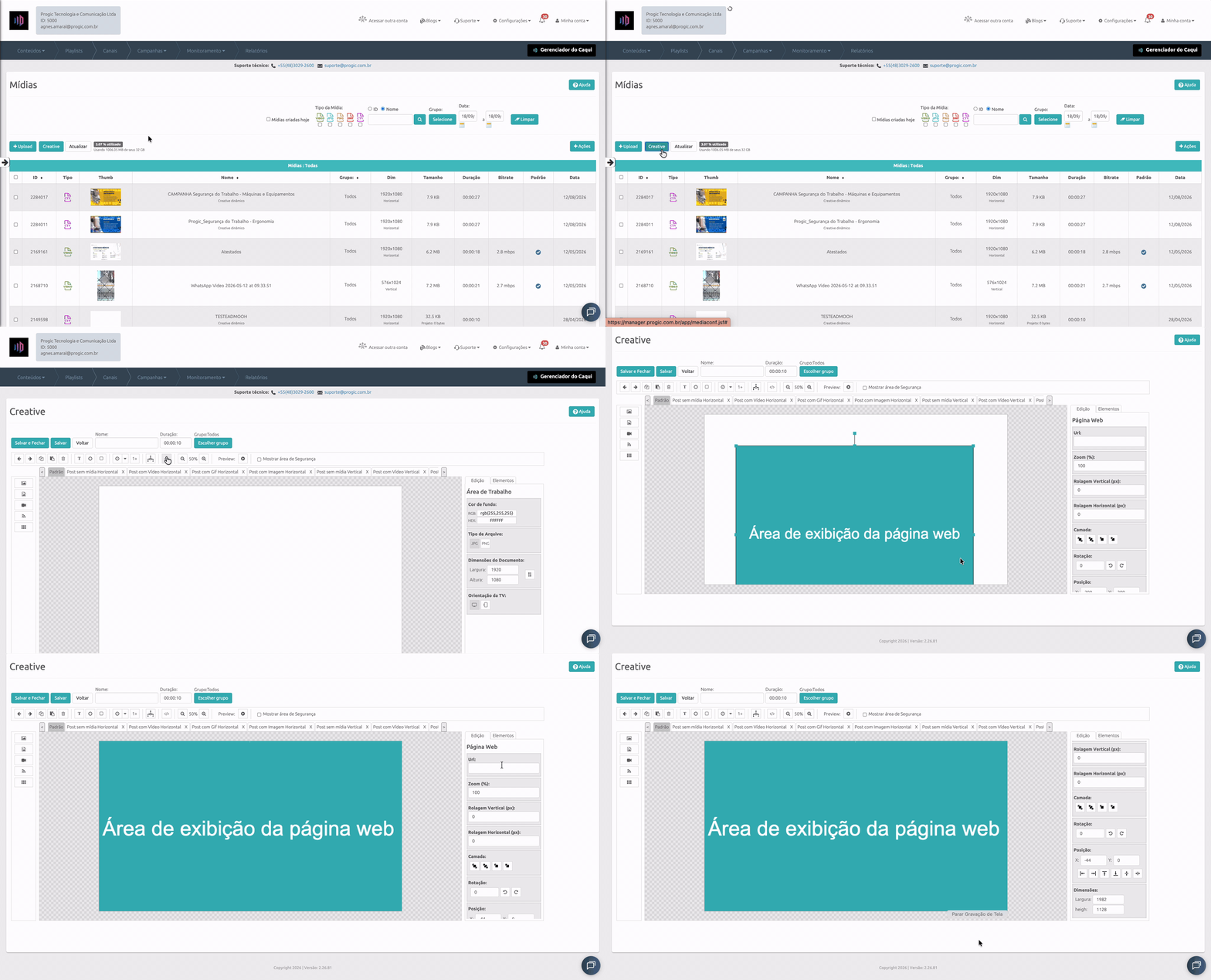
How to Configure a Web Page Display?
URL
Enter the address of the page to be displayed. The page must be available on the internet and cannot require login to be accessed by the player.
Zoom
Set the zoom level used when displaying the page to adjust how the content fits within the area reserved in the template.
Vertical Scrolling
Configure vertical scrolling when it is necessary to display content located above or below the visible area of the page.
Horizontal Scrolling
Configure horizontal scrolling when it is necessary to display content positioned on the sides of the page.
Web Page Display or Screen Capture?
The choice depends on how the page is accessed and the required update frequency.
|
Feature |
Recommended Use |
|
Web Page Display |
For public pages that need to be displayed with updates closer to real time. |
|
Screen Capture |
When it is necessary to generate an image of the page at configured intervals or access systems protected by login. |
Before Using
- Make sure the page is publicly available;
- Confirm that the page does not require login;
- Keep the player connected to the internet;
- Check that the provided URL is accessible;
- Adjust the content using the zoom and scrolling options.
✅ Benefits of Web Page Display
- Displays content directly from the configured URL;
- Updates content according to template execution on the player;
- Provides a display experience closer to real time;
- Offers zoom and scrolling settings;
- Is an alternative to Screen Capture for public pages.