
With the automatic New Employees editorial, the TV introduces people whose hire date falls on the chosen day, week or month. The list uses data from the employee records, with no manual selection of names.
What it's for
Welcoming newcomers and building hiring announcements by day, week or month.
Before you start
- Permission: access to create editorials in the Manager.
- Employee records filled in: under Settings > Employees. If your database comes from another system, see Integration of the Employee Database with Progic Manager.
- Hire date: filled in on each employee’s record.
- Employee group: the employee must be in the group covered by the players’ segmentation.
- Template ready: with the fields you want to show, such as name, photo and date.
Step by step
1. Open the Editorials screen
In the Manager, go to Content > Editorials.
2. Add the editorial
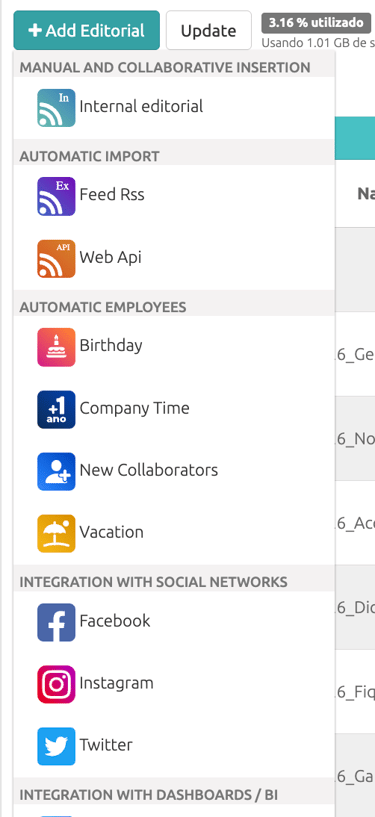
Click + Add Editorial and, in the Automatic employees section, choose New Collaborators
3. Fill in the settings
| Field | What to enter |
|---|---|
| Name (required) | A name to identify the editorial. |
| Group | The editorial’s organization group. By default, it is set to All. |
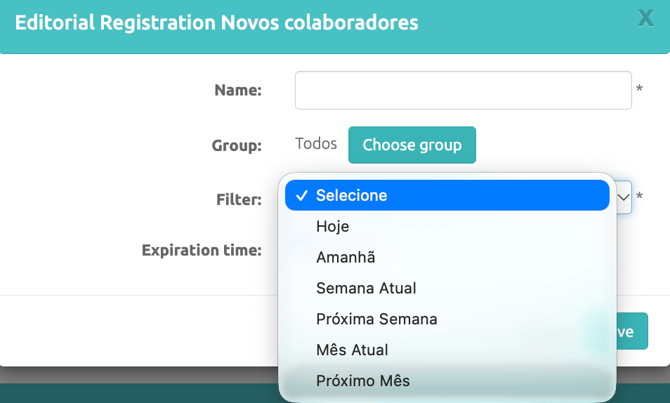
| Filter (required) | The period. The field starts at Select. |
| Validity | By default, it is set to Unlimited. |
4. Choose the filter
| Filter | Who appears |
|---|---|
| Hoje (Today) | People whose hire date is today. |
| Amanhã (Tomorrow) | People whose hire date is tomorrow. |
| Semana Atual (Current Week) | People whose hire date is this week, Monday to Sunday. |
| Próxima Semana (Next Week) | People whose hire date is next week, Monday to Sunday. |
| Mês Atual (Current Month) | People whose hire date is this month, from the first to the last day. |
| Próximo Mês (Next Month) | People whose hire date is next month, from the first to the last day. |
Periods are calculated on the processing date. The limits count: the first and last day of the period are included in the list.
5. Save and link to the template
Click Save and link the editorial to the template that will show the communication. If a validation message appears, fix the indicated field before saving.
Set up segmentation on the player
The player's audience defines which employee groups it can show people from. This setting applies to all automatic employee editorials (Birthdays, Time at the Company, New Employees and Vacations). It doesn't change the date filter or the editorial's other rules.
Open Set audience
- In the Manager, go to Monitoring > Players.
- Select the player in the list.
- Open Actions > Define audience. This option is separate from Edit player.
⚠️ To adjust a single screen, select just one player. If you select several and save, the setting applies to all of them.
Choose who the player should receive
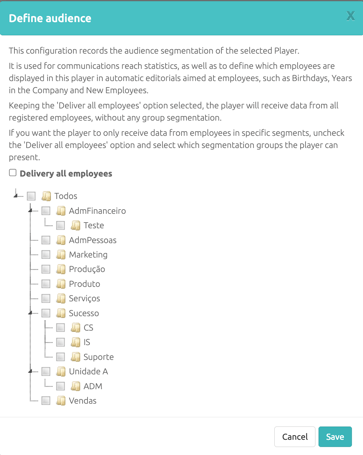
- All employees: keep Delivery all employees checked. There is no group restriction.
- Only some groups: uncheck Delivery all employees. The group tree appears. Check the groups whose employees this player should show. Checking a parent group also checks its subgroups: review before saving.
With the option unchecked, you must choose at least one group. Click Save: the message Audience saved successfully! confirms it. The change may take a while to appear on screen.
Understand the difference between the groups
| Where | What it’s for |
|---|---|
| Group in the editorial settings | Organizes the editorial (the data source). |
| Group in the employee record | Shows which group the person belongs to. |
| Set audience on the player | Chooses which employee groups that player can show people from. |
ℹ️ Putting the editorial or the player itself in a group doesn't replace the Set audience setting.
Example with two units
Register employees in the groups Unit A and Unit B. On the Unit A player, uncheck Deliver all employees and select Unit A. On the Unit B player, do the same with Unit B. The same editorial can feed both players, but each one only receives employees from its own group. A reception player that shows both units can select both groups.
💡 If the Set audience option doesn't appear, check with the administrator whether the feature is available on the account. You also need permission to change players.
Rules and behavior
How employees are selected
The editorial considers the full hire date, with day, month and year. The date the record was created doesn't count.
Example: with the Current Month filter in November 2026, a hire on 11/10/2026 is included in the list. A hire on 11/10/2025 is not, even if the record was created now.
ℹ️ Future hires also appear when they fall within the period. On 11/04/2026, the Current Month filter may include someone with a hire date of 11/20/2026.
⚠️ Current Month is the whole month, not the last 30 days. The Show in birthday lists options are not used as a filter for this editorial.
Who doesn't appear
- Blocked employees.
- Employees without a hire date.
- Employees whose full hire date is outside the chosen period.
If someone doesn't appear, check in this order: the employee record (dates and options), whether they are blocked, the editorial filter, the groups checked in Set audience on the player, and the link between the editorial and the template.
Data available to the template
The editorial sends data from the employee record to the template, such as first and last name, preferred name, photo, job title, unit, department, employee ID and the dates of birth and hire (in dd/mm/yyyy format). What appears on screen depends on the layout and the fields used in the template.
Updates
Changes to employee records are picked up by the editorial automatically in the next processing run. It may take some time for the change to appear on screen.
Limitations
- There are six predefined periods. There is no free date selection.
- Updates depend on processing and on the content reaching the player.
- The look and the fields shown depend on the template. The editorial only provides the data.
Frequently asked questions
Does creating the record today make the employee appear?
Only if the hire date falls within the chosen period. The record creation date doesn't count.
Do people who joined in the same month last year appear?
No. New Employees considers the hire year. To celebrate work anniversaries, use Time at the Company.
Can I show people who are about to join?
Yes, if the future hire date is already registered and falls within the filter period.
Can I use "last 30 days"?
No. There is no rolling interval in this setting. Use the available periods.
I changed the record, but the content hasn't changed yet. What now?
Wait for the next automatic processing run and check the link between the editorial and the template and the groups checked on the player.
Related articles
- [Progic] How to share birthdays with the automatic Birthdays editorial
- [Progic] How to celebrate work anniversaries with the Time at the Company editorial
- [Progic] How to share employee vacations with the automatic Vacations editorial
- [Progic] Automatic editorials: what they are and which one to use
- [Progic] What are Groups and how to create them?