

.png?width=670&height=440&name=Designer%20(6).png)
Now that you know the channel name, go to the Channels menu. In the Playlist column, you will see the name corresponding to the playlist that makes up the channel you want to edit:
.png?width=670&height=335&name=divisaodotempoen%20(1).png)
Adding Media to the Playlist
Go to the Playlist menu and select the desired playlist, choose the "Actions > Edit" option.


On the left side, you will see all the media available in your account (Media Library). On the right side, you will see the media that are already part of the current programming.
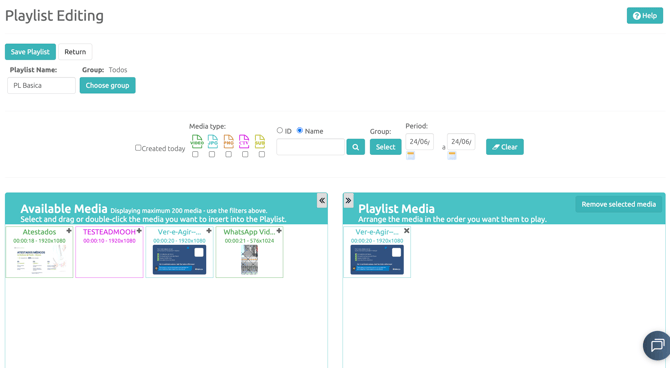
You can use the search filters to make it easier to find and organize your media. This feature is especially useful for accounts with many media files.
Ways to Add Media to the Playlist
There are three ways to add media to the playlist:
- Drag the media to the playlist (allows insertion at any position);
- Click on the “+” in the upper right corner of the media (adds it to the end of the playlist);
- Double-click on the media (also adds it to the end of the playlist).
.gif?width=670&height=377&name=addmediatoplaylist%20(2).gif)
It is worth mentioning that the order in which the media is added will be exactly the same as the order in which it will be played on your Corporate TV.
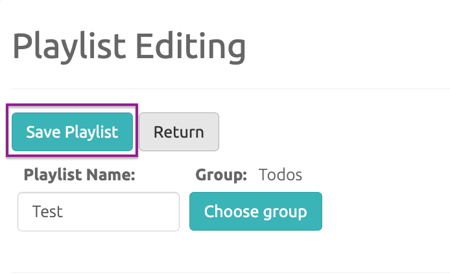
Done! Now simply save the changes by clicking on “Save Playlist” so that the player receives and synchronizes the new schedule.
If you have any questions about performing the operations described above, feel free to contact our Technical Support team through the official channels.