
When creating a new news post in a Section, you will notice that there is now a “Learn More Link (Saiba Mais)” field on the screen where posts are created.
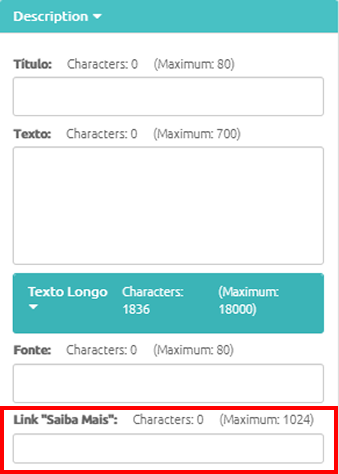
In this field, enter the website/news link that will be accessed through the generated QR Code (for example, if you enter the link www.progic.com.br, the QR Code will direct users to the Progic website).
When you save the post, the QR Code image will appear below the “Learn More Link” field.
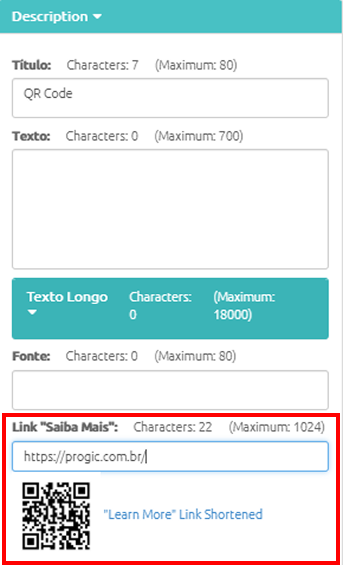
Important: before generating the QR Code, Progic Manager shortens the provided link. This results in a simpler QR Code and, consequently, one that is easier for mobile phone cameras to recognize.
Once this step is completed, simply insert the generated QR Code into the template that will be displayed on the Corporate TV.
To do this, open the content editing screen (accessed through the Content>Media option), Creative, and insert the section’s “qrcode” field into the template:
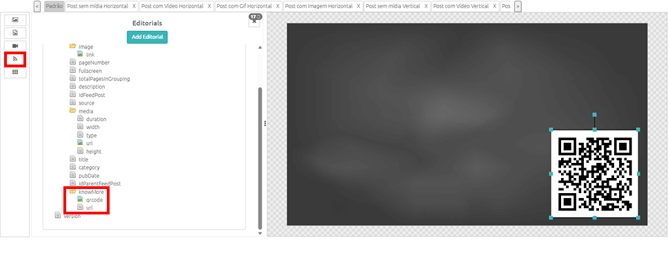
It is now ready. Whenever a news item that contains a QR Code is displayed, the QR Code will also appear on the template screen on the TV.