Introduction to reports
Manager allows the generation of several types of reports. These reports help users visualize, through consolidated data and charts, information about media playback, channels, playlists, as well as hardware diagnostics and other features.
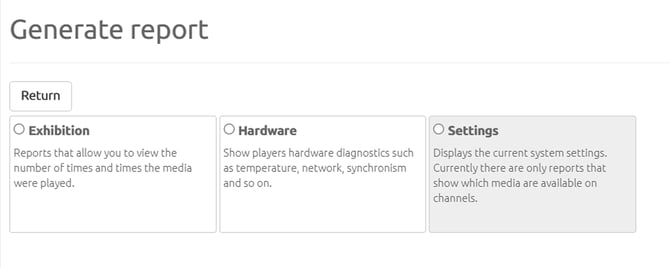
There are currently 3 report categories available on the Reports screen: Display, Hardware, and Settings.
The reports are explained in more detail below:
- Click Reports.
- Click Generate Reports.
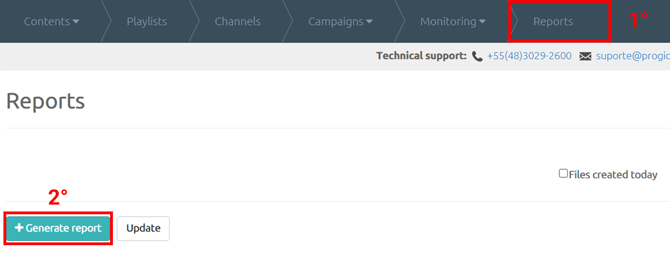
- When you click Generate Reports, the following report categories are displayed:
Display: Reports that allow you to view how many times and at what times media was played. This category includes the following reports:
-
Consolidated
- Detailed
- Daily Consolidated
- Consolidated Chart
- Detailed Chart
- Daily Consolidated Chart
- Media by player
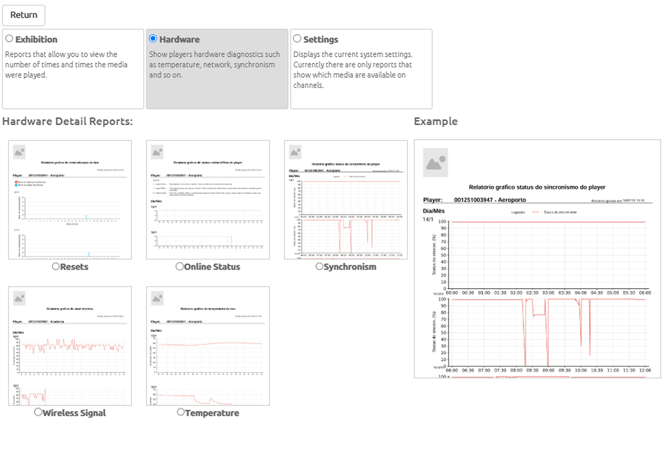
Hardware:Displays hardware diagnostics for players, such as temperature, network status, synchronization, and more. This category includes the following reports:
- Reboots
- Online Status
- Synchronization
- Wireless Signal
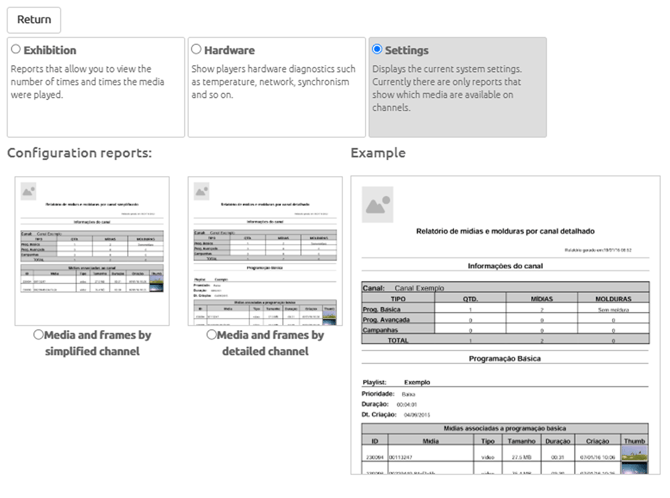
Settings: Displays the current system settings. At present, these reports only show which media is available in channels. This category includes the following reports:
- Media and frames by channel (simplified)
- Media and frames by channel (detailed)
Display Reports
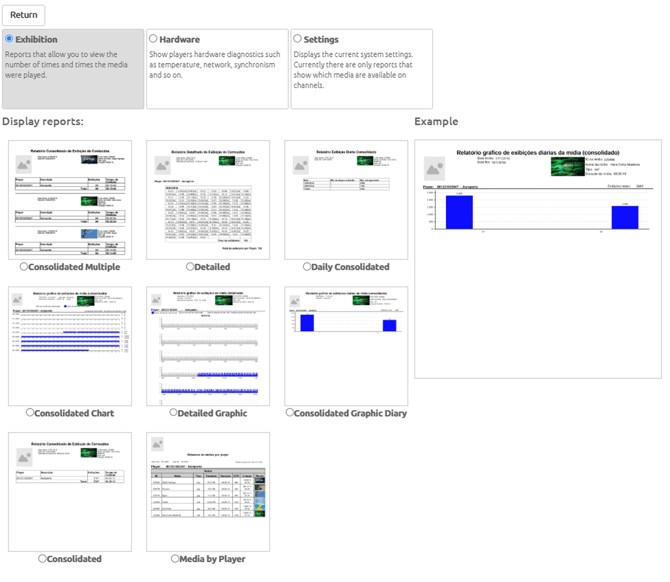
The Display category includes the following report types:
- Consolidated: Counts the total number of times a specific media item was displayed within a selected period.
- Detailed: The detailed report lists the exact time of every individual playback of a specific media item, organized by Player serial number and separated by day within the selected period.
- Daily Consolidated: Counts the total number of times a specific media item was displayed per day within a selected period.
- Consolidated Chart: Counts the total number of times a specific media item was displayed within a selected period and presents the data in a chart.
- Detailed Chart: Lists the exact time of every individual playback of a specific media item, organized by Player serial number and separated by day within the selected period, along with a chart.
- Daily Consolidated Chart: Counts the total number of times a specific media item was displayed during a single day and presents the data in a chart.
- Media by player: This report counts the number of times each media item was played by the player during a selected period, along with information about each media item.
Hardware Reports
The Hardware category includes the following report types:
To generate a report, you must select the desired period, which cannot exceed 6 (six) months. After selecting the period, select the player and then click the desired report generation option.
- Reboots: This report graphically shows whether the player experienced an application reset (software) or a player reset (hardware), displaying the exact date, time, and number of occurrences.
- Online Status: This report displays the periods during which the player was online or offline.
- Synchronization: This report graphically shows the exact start time of synchronization and its completion percentage. Through this report, it is possible to verify how many times synchronization with the servers occurred and its percentage, as well as how long synchronization took to complete.
- Wireless Signal: This report graphically displays the wireless network signal level over time, making it possible to diagnose wireless signal strength issues.
- Temperature: Displays a report showing the minimum and maximum temperatures reached by the player each day. This report provides information that helps diagnose issues related to high temperatures that may affect player performance.
Settings Reports
The Settings category includes the following report types:
- Media and frames by channel (simplified): This report allows you to view the media and frames currently being played on the channel.
- Media and frames by channel (detailed): This report allows you to view the media and frames currently being played on the channel in a detailed format.