
Creating New Users in Manager
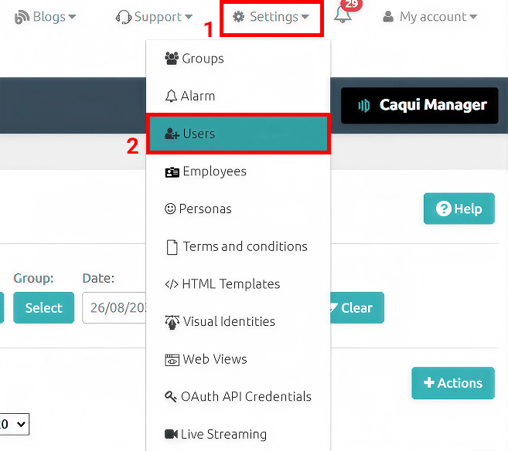
To create a new user within Manager, go to the Settings option in the top menu and then select the Users option:
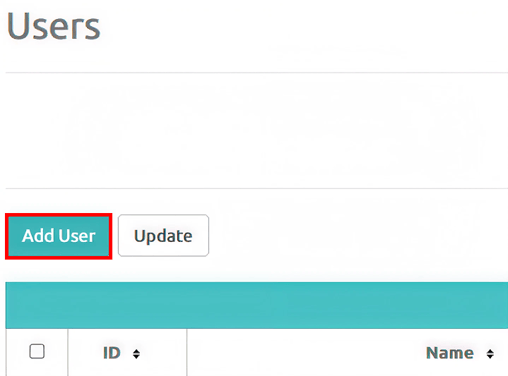
On the screen where all registered users are displayed, click the Add User button:
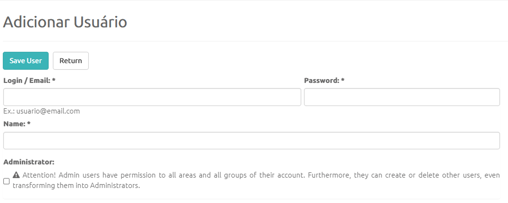
On the new user registration screen, you must fill in all of the following fields:
- Login: valid email address that the user will use to access Manager;
- Password: create the Manager access password that this user will use;
- Name: user's full name.
If the user will be a new account Administrator (with full access and permissions), you must select the Administrator option.
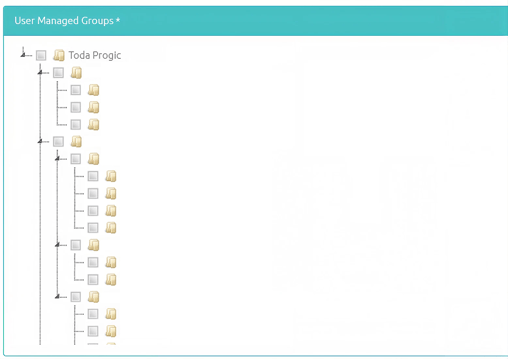
Select the Groups the user will have access to (if they do not have Administrator permissions).
Page permissions
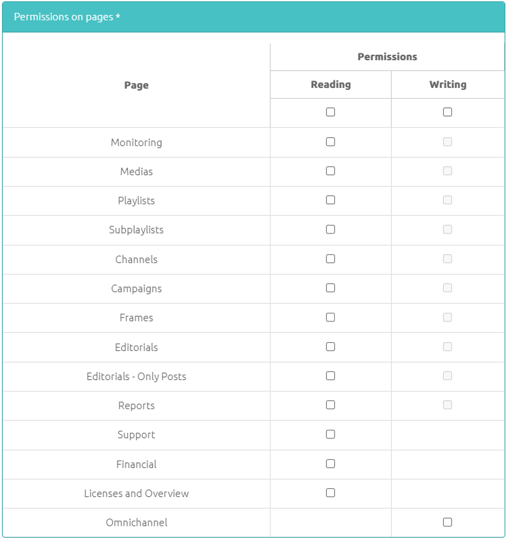
In the Page permissions section, select the areas the user can access and the access level for each one:
| Permission | What the user can do |
|---|---|
| No read | The area is not available to them. |
| Read | Views the information without saving changes. |
| Read and write | Views and makes the changes available in the area. |
Select Write only when the user needs to make changes. Write depends on read: removing read access from an area also removes write access. Some areas have a single access option, with no split between read and write.
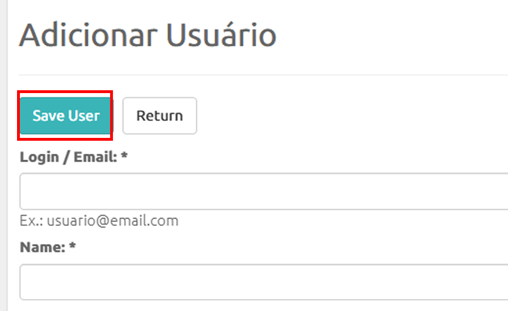
To complete the new User registration, simply click the Save User button.
The areas that can be granted include:
| Area | Access type |
|---|---|
| People (Employees) | Read and write |
| Groups | Read and write, within the groups the user can access |
| Users | Read and write, with rules for managing other users |
| Personas | Read and write |
| Visual Identities | Read and write |
| Multichannel (Omnichannel) | Read and write |
| Live Broadcasts | Read and write |
| Web Views | Read and write |
| Terms and Conditions | Read and write |
| Help Center and tickets | Single access |
ℹ️ Each area is only available if the matching module is enabled on your account. Granting a permission does not enable a module the account does not have.
Personas
When applicable, check the Personas the user is allowed to publish as.
This is different from the Personas area permission, which defines whether the user can view or manage persona records. Access to the area does not mean they can publish as any persona.
When you are done, click Save User.
⚠️ Whenever you change a user's permissions, ask them to log out and log back in to load the new access.
What a user with restricted access sees
Menus are loaded according to each user's permissions, so people with different roles may see different options in the same account. If a menu section has no areas granted, it is hidden.
With Read permission, the user can open records to view them, but save and delete buttons and edit fields are locked. For example:
- People: views the record without saving changes;
- Personas: views the data without saving or deleting;
- Visual Identities: views the settings without saving changes;
- Live Broadcasts: views the broadcast without changing its data, including the duration.
ℹ️ Opening a page through a direct link does not expand the user's access. Actions still depend on their permissions.
Users who create or edit announcements can see the TV preview even without access to Media. Viewing the media does not grant permission to edit it.
When a non-admin user manages other users
A user with read and write access to Users can manage other users, but always within their own limits. They can only grant access they have themselves, and this permission does not make them an administrator.
Which users appear in the list
| User record | What happens |
|---|---|
| No groups in common with you | The user does not appear in the list. |
| Some groups outside your access | The user appears as read-only. Groups outside your access are hidden and changes are blocked. |
| All groups within your access | The user can be edited, as long as their permissions and personas are also within your access. |
When you can save
To save changes to another user, you need:
- read and write access to Users;
- access to all of the user's groups;
- access to all of the user's personas;
- the permissions needed to manage that user's access.
If anything is outside your access, the Save button is locked and the screen shows a message explaining why, without revealing the names of personas you cannot see. In that case, ask an account administrator.
📌 Example: you manage the Sales group. A colleague belongs to the Sales and Finance groups. They appear in your list, but the Finance group is hidden, a message tells you there are groups outside your access, and you cannot save changes to their record.
The same rules apply to activating, deactivating, and changing system notification settings. If you select several users and any of them is outside your access, the action is unavailable for that selection.
Common questions
| Situation | What to check |
|---|---|
| A menu does not appear for the user | Whether they have read access to the area and the module is enabled on the account. |
| The screen opens but does not let them save | Whether they have write access to the area. |
| Permissions changed but the menu looks the same | Ask them to log out and log back in. |
| Editing a user shows an access warning | Groups, personas, or permissions on that user are outside your access. |
| A user does not appear in the list | You may not share any groups with them. |
| A bulk action is disabled | One of the selected users is outside your access. |
Need additional access? Contact an administrator on your account.