
If you got here because you tried to publish content in an editorial section that is not yet being used in any technology channel, this article will help you understand what that means.
On Progic, an editorial section can exist and receive publications even if it is not being used in any channel for any technology (TV, App, AI, etc.). This means content can be created normally, but it will not be displayed to any audience until that editorial section becomes part of an active channel configuration.
This article explains:
- The role of an editorial section within the platform
- Why the relationship between an editorial section and a technology happens through channels
- How content from an editorial section is displayed on Corporate TV
- How content from an editorial section is displayed in the app
What is the role of an editorial section?
An editorial section works as a thematic way of organizing topics. It is used to organize and classify content within the Progic solution, making management, publishing, and even shared and decentralized content production strategies easier.
By itself, it does not determine:
- Where the content will be displayed
- Which screens, players, or apps it will appear on
- Which audience will be reached
These definitions are made through other system settings.
The relationship between an editorial section and a technology happens through channels
On Progic, there is no single or direct action to “link an editorial section to a technology”, such as Corporate TV or the App.
In practice, the editorial section must be linked to an internal communication channel, and that channel uses a specific technology to deliver the content to the audience.
An editorial section can exist without being effectively associated with a channel, whether it is based on TV technology, an app, email, or another format. When that happens:
- Content can still be published normally;
- However, it will not be displayed on any TV, app, or any other distribution format;
- The publication will not reach the end audience until that editorial section is used in an active channel.
.png?width=670&height=447&name=Designer%20(3).png)
Step by step: how an editorial section becomes used on Corporate TV
On Corporate TV, using an editorial section depends on a set of configurations:
Create content in an editorial section
Content (or publication) is created normally within the desired editorial section. It is important to have at least one publication inside an editorial section before moving on to the next step, which is creating a template.
To do this, once the editorial section has already been created, publish any content in it—preferably a publication that makes good use of fields such as Title, Description, Long Text, Media, the “Learn More” link, Category, and so on.
Some of these fields (such as Category) are hidden by default, and their visibility is configured when the editorial section is created or edited.
Use the editorial section in a template (Creative)
The editorial section must be associated with a template, which defines the layout and how the content is displayed on TV.
Add the template to a playlist or sub-playlist
This template is what actually represents that editorial section on Corporate TV, because it defines the visual design, formats, typography, and layout that the TV screen should display when it is time for that publication to go live.
For this reason, to effectively associate an editorial section with a channel in the Corporate TV technology, you must include this template in a playlist or sub-playlist.
Associate the playlist with a player
The playlist can be:
-
-
Associated directly with a player, or
- Associated indirectly through a TV channel, which is then linked to a player. We recommend using this second method.
-
Link the TV channel to the player
TV channels are configured in Progic Manager and act as intermediaries between playlists and players. They can contain a basic playlist that serves as the 24/7 “default” playlist, and they can also contain blocks of specific playlists scheduled by time.
Follow the steps below to create the link:
-
Go to the Channels menu and click Create channel or edit an existing channel.
-
Under Basic programming, select the playlist that will be displayed by default.
- If needed, use advanced programming to define different playlists for specific days or times.
✅ After these steps, the playlist content will begin to be displayed on Corporate TV through the configured player.
Step by step: how an editorial section becomes used in the app
When it comes to the app, the process is different and straightforward:
-
Open the creation flow for an app-type channel
Go to Content > Multichannel / Omnichannel > Create Omnichannel
- Select the editorial sections
In the third configuration step, select the editorial sections that will provide content for the app.
.gif?width=670&height=378&name=PROGIC-%20app%20editoria%20(1).gif)
-
Create an app-type channel
In the last step, select the Applicativo type.
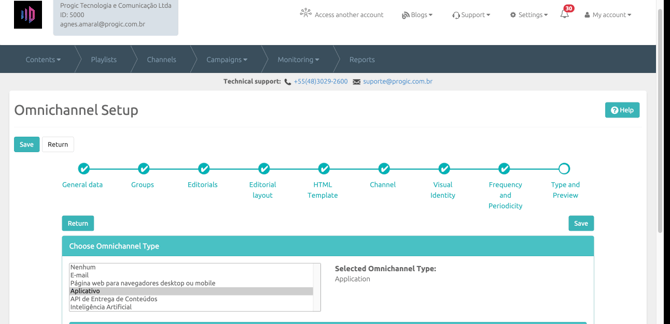
✅ The selected editorial sections will start supplying content to this channel, and their content will be displayed in the app.
Important to remember
- Publishing content in an unused editorial section is not an error
- That content simply will not be displayed until the editorial section is used in a channel
- The configuration that connects the editorial section to the technology does not happen inside the editorial section itself
- Corporate TV and the app have different workflows for linking an editorial section