
Progic Player 2 consists of the following items included with the device:
.png?width=670&height=780&name=Manual%20Progic%202%20EN%20(2).png)
Connecting the antenna, network, video and power cables
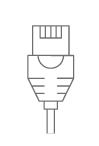
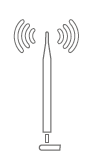
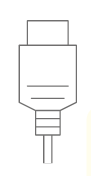
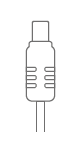
Product operation
To synchronize with Progic servers and update the content to be displayed, the customer must have an internet connection through a router.
It is important to ensure that there are no Firewall settings on this router that may block access.
If the customer chooses to configure Firewall rules, they must allow port 443 (https) and the following subdomains:
- syncds.boxip.com.br
- fileserver.boxip.com.br
- upgrade.boxip.com.br
Once powered on, the Progic Player 2 will initialize (approximately 2 minutes) and begin playing the factory default content without requiring any further action by the user.
However, it is important for the user to ensure that the product has active internet access so that programming updates can be performed and new content can be downloaded.
To verify that the internet connection is active, follow the procedures below.
Connecting to the network
Accessing the network settings screen
- Press the "Ok" button on the remote control to enter the system menu;
- Use the directional buttons on the remote control to navigate through the screen;
- Go to the "Network settings screen" button and press "Ok";
Note that the available interface options are: WiFi or wired.
Both options can be configured with automatic IP addressing (DHCP mode) or fixed IP addressing (STATIC mode).
For fixed IP configuration, all fields must be completed according to your router settings. The required fields are:
- IP Address
- Subnet Mask
- DNS
- Gateway
For automatic IP assignment, simply keep "DHCP" selected.
Selecting a WiFi network
- In the drop-down menu, choose the Wi-Fi option;
- Wait for the Wi-Fi network selection screen to list the available networks;
- Select your Wi-Fi network;
- Enter the password;
- Select the security mode;
- Navigate to the "Apply and restart" button;
💡 NOTE: This will restart the system with the new network settings.
Technical specifications
- Equipment certifications: Anatel, FCC, CE and RoHS.
- Linux-based operating system.
- Outputs: HDMI (digital) and CVBS (analog).
- Internet connection: RJ45 cable or Wi-Fi 802.11 b/g/n with external 2 dB Omni antenna (2.4 GHz networks only).
- Dimensions: 15 cm x 10 cm x 3 cm.
- Weight: 200 g.
- Power consumption: 3 W.
- Power supply: External Full Range power adapter (90-240 VAC) to 5V = 2A.
- Maximum storage capacity: 16 GB.
- RAM memory: 2 GB.
- Operating temperature: 30°C to 80°C.
⚠️ NOTE: Image display device for digital signage focused on professional Corporate TV use. Do not use in home environments for personal purposes.