
The Progic Manager has a new version, so let's walk through the new home screen. As soon as you log in, you see a summary of what happened in your company's communication during the period, get quick access to create a new communication, and find the platform's latest news all in one place.
This article covers each part of the screen so you can find your way around from your very first access.
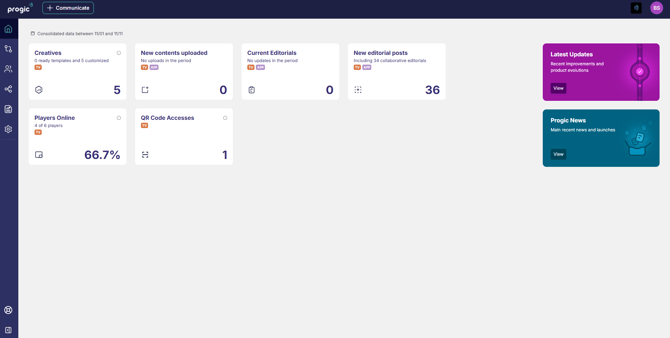
How the screen is organized
The home screen has four areas:
- Top bar: the + Communicate button and your profile.
- Side menu: access to every area of the Manager.
- Indicators: cards with the figures for the period.
- Shortcuts: Latest Updates and What's New at Progic.
Top bar
+ Communicate button
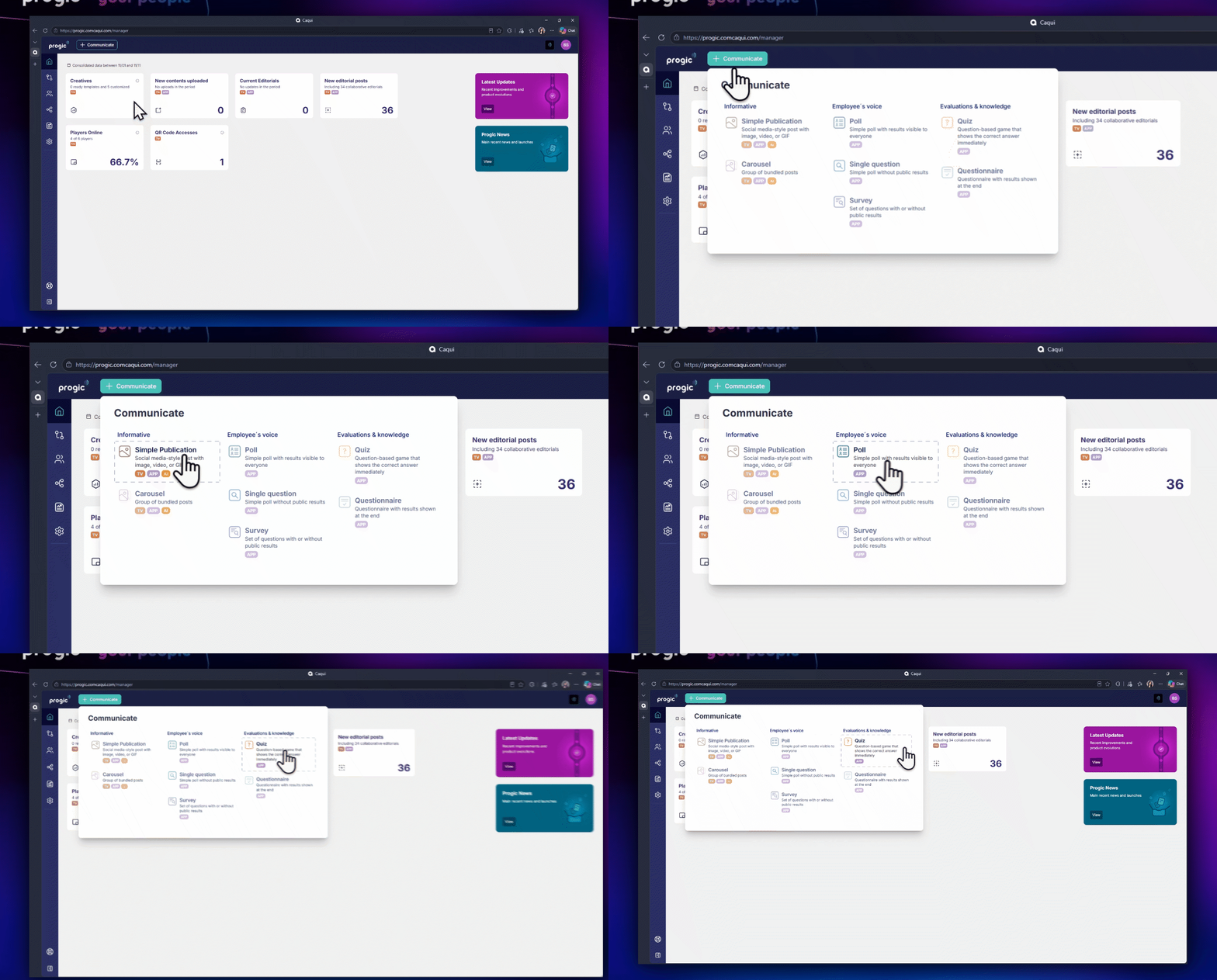
The + Communicate button is always visible in the top-left corner, on every Manager screen. Click it to see all available communication formats, organized into three groups:
| Group | Formats | What it's for |
| Informational | Simple Post, Carousel | Deliver information to employees with an image, video, GIF or a set of posts |
| Employee voice | Poll, Single Question, Survey | Listen to employees, with or without public results |
| Assessments & knowledge | Quiz, Questionnaire | Test knowledge, showing the answer right away or the result at the end |
💡 The tags below each format (TV, APP and AI) show where that format can be used.
Profile and language
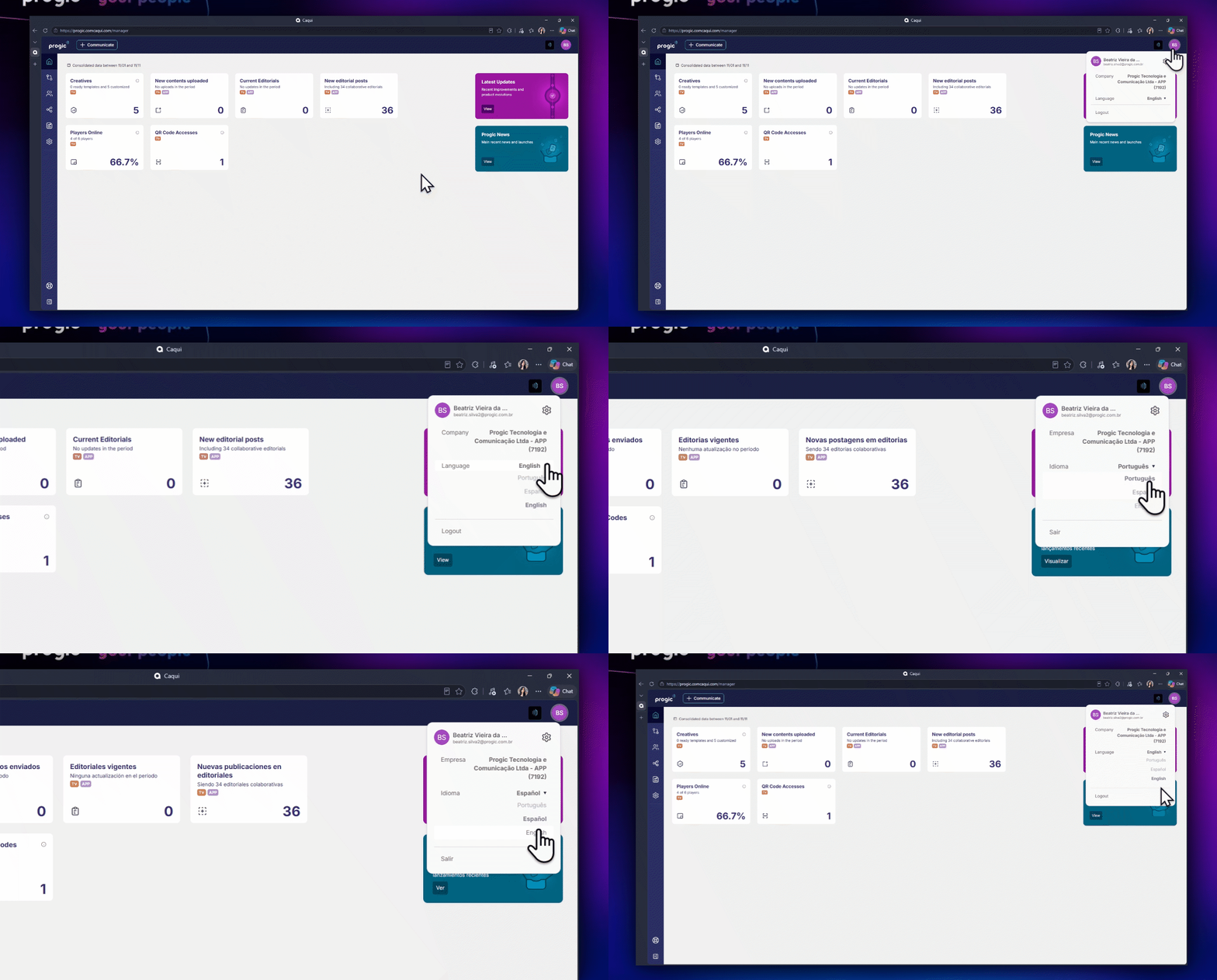
Click your initials in the top-right corner to see your name, email and company. From this same menu you can switch the Manager language between Português, Español and English, and log out of the platform.
The language change applies immediately to the whole interface: menus, indicators and messages.
Side menu
The side menu brings together the areas of the Manager. Click an item to open a panel with that area's options, without leaving the screen you're on.
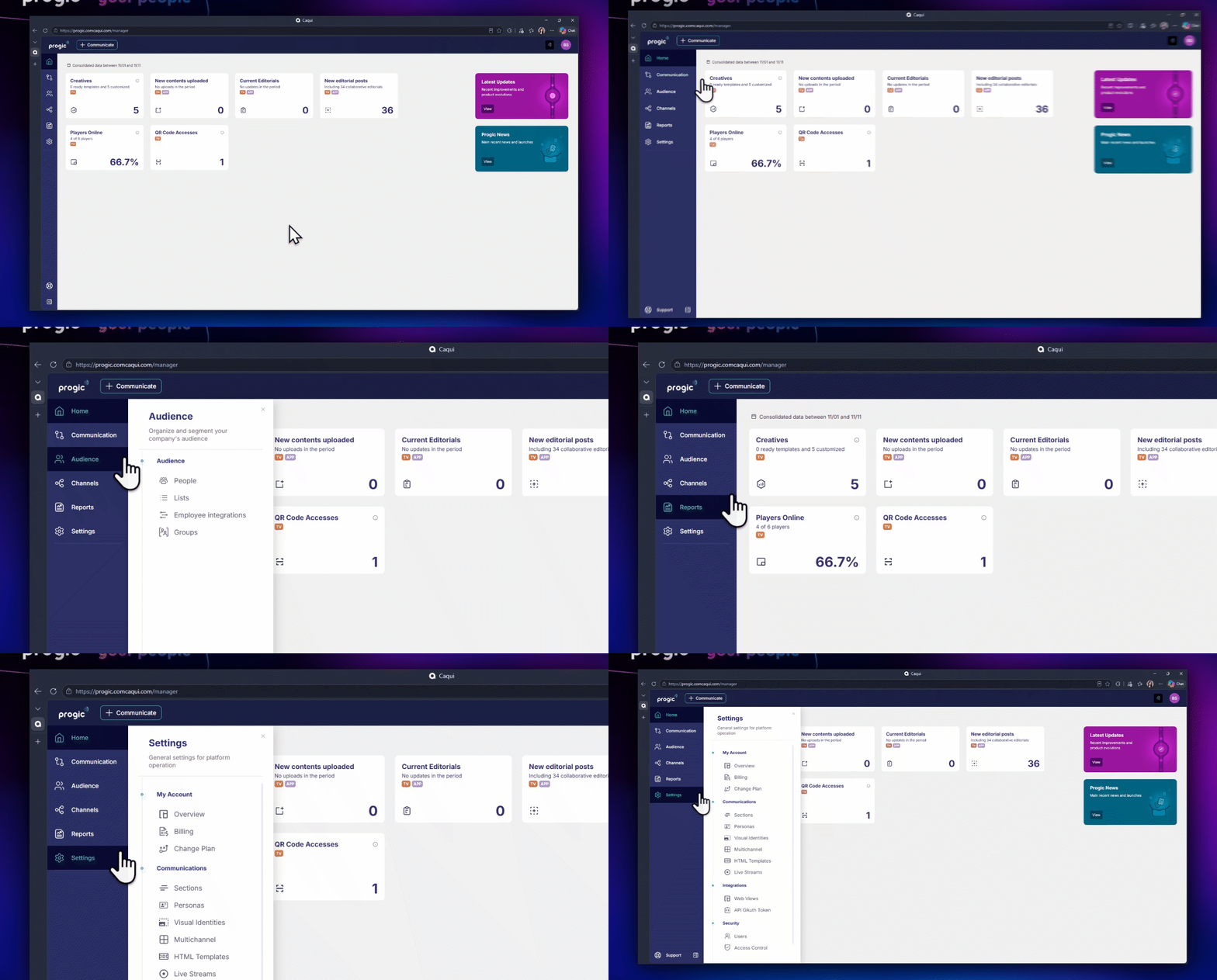
| Item | What you'll find |
| Home | Returns to the home screen |
| Communication | Company communications: Institutional, Social and Responses |
| Audience | Audience organization and segmentation: People, Lists and Groups |
| Channels | Communication distribution channels, with the Corporate TV and Mobile tabs (players, content, campaigns, metrics and settings) |
| Reports | Platform reports |
| Settings | General settings: My Account, Communications, Integrations and Security |
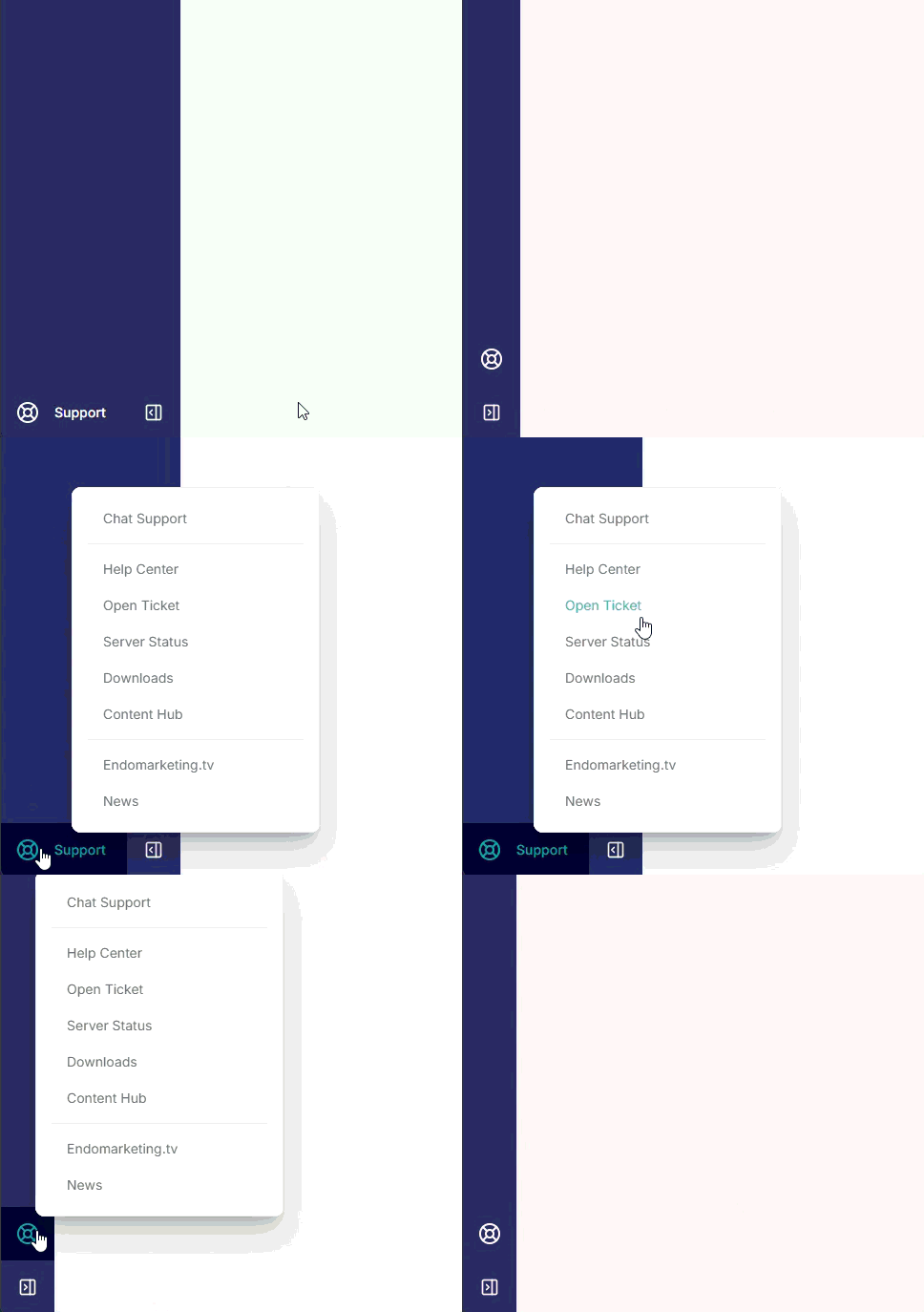
At the bottom of the menu you'll find the Help link and the button to collapse the menu, which frees up more space on the screen.
Period indicators
The center of the screen shows the indicator cards, with a summary of communication activity. Right above them, the line "Data consolidated between" shows the period the figures cover.
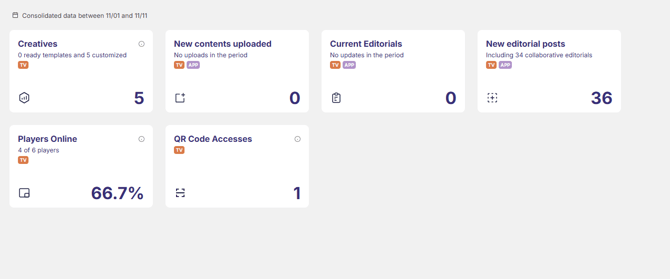
| Card | What it shows |
| Creatives | Number of creatives in the period |
| New content sent | Number of content items sent in the period |
| Active editorials | Editorials updated in the period |
| New posts in editorials | Posts made in collaborative editorials in the period |
| Players Online | Percentage of TV players currently online |
| QR Code accesses | Number of accesses to QR Codes shown on TV |
Each card has tags (TV and APP) showing which channel the data comes from. On cards with the ⓘ icon, hover over it to see more details about the indicator.
⚠️ If there is no data for the period yet, the screen shows the message "There is no registered data for the indicators below" and the cards show zero. To get started, create a communication in + Communicate.
Latest Updates and What's New at Progic
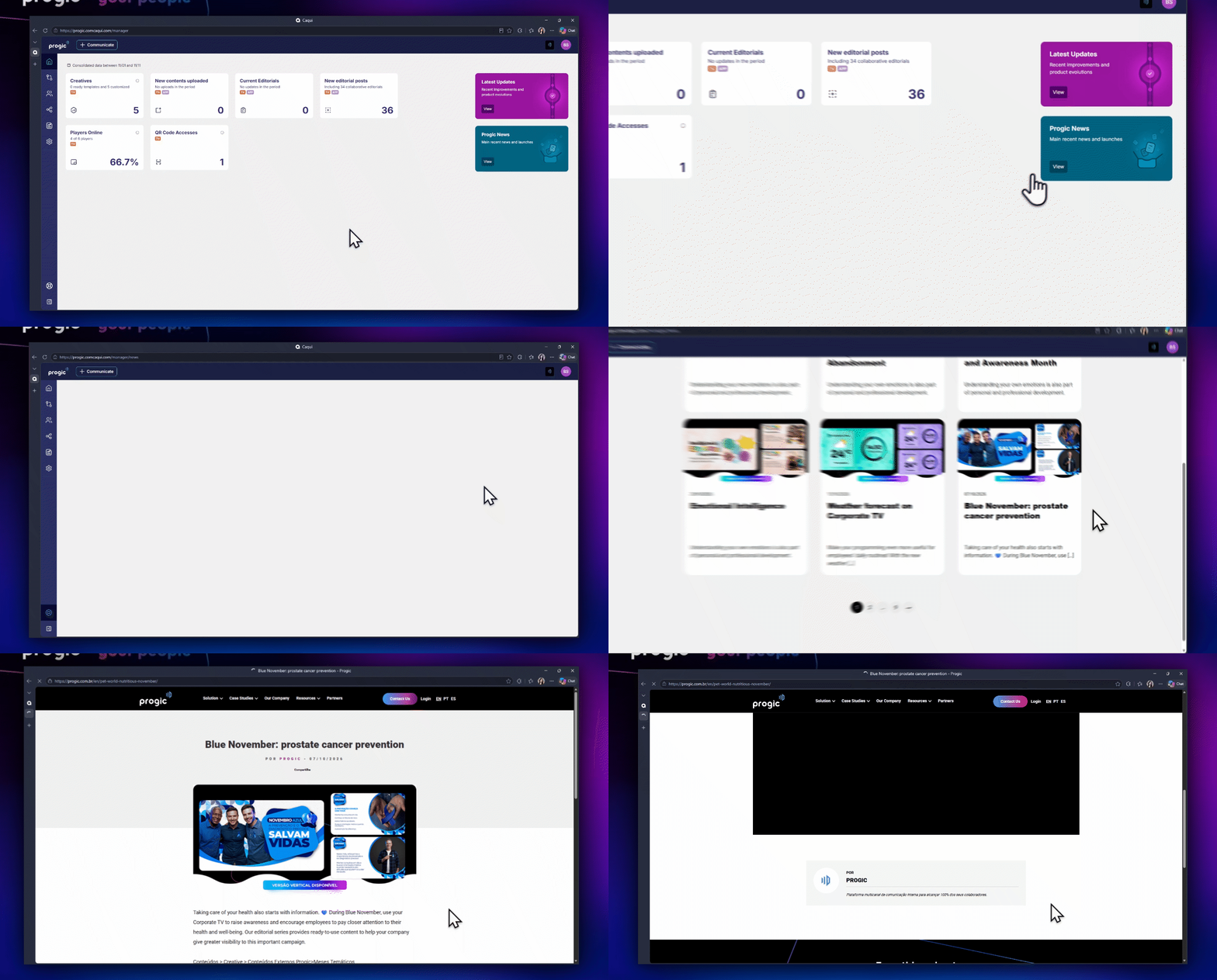
On the right side of the screen are two shortcuts to keep up with the platform's evolution.
Latest Updates
Click View to see a timeline of product improvements and enhancements, organized by date. Each item has a tag showing where the new feature appears, such as Admin Panel, Mobile App, Desk App or Corporate TV.
What's New at Progic
Click View to see recent launches, such as editorial templates and ready-to-use campaigns for your communication.
Frequently asked questions
Why are my indicators showing zero?
The figures only cover the period shown in "Data consolidated between". If no content was sent during that time, the cards show zero. Create a communication in + Communicate to get started.
Can I use the Manager in another language?
Yes. Click your initials in the top-right corner and choose Português, Español or English under Language.
Where can I see what has changed on the platform?
In the Latest Updates card, on the right side of the home screen.