
Before starting the setup process, locate the Progic Player remote control. To make identification easier, we have attached an image as a reference:

Step 2: Access Internet Settings
- With the remote control in hand, point it at the player.
- Press the OK button or the Home button (the button may vary depending on the remote control model).
- On the information screen, navigate to Internet Settings and press OK or Select on the remote control.
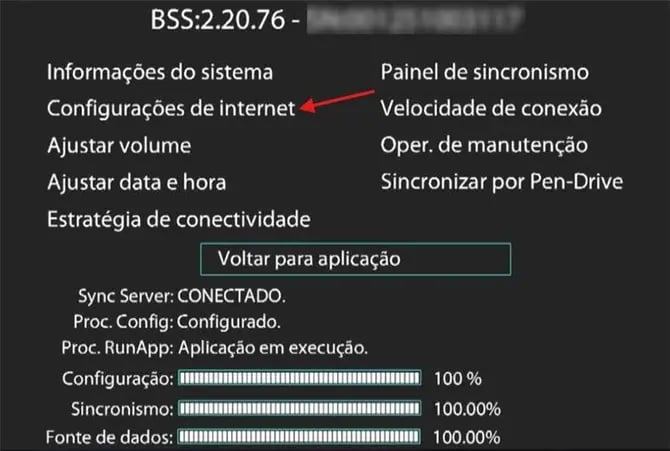
Step 3: Internet Setup via Wi‑Fi
If the connection will be made using Wi‑Fi, configure the following parameters:
- Interface = Wireless
- Wi‑Fi Network = Local Wi‑Fi network name
- Password = Local Wi‑Fi network password
- Standard = BG Only
- Security = WPA / WPA2-PSK
Proxy Settings
(Validate according to local network policies. The configuration below is recommended for networks without advanced settings.)
- Proxy = Do Not Use Proxy
Mode Settings
(Validate according to local network policies. The configuration below is recommended for networks without advanced settings.)
- Mode = Automatic (DHCP)
Once completed, the settings should match the image below:
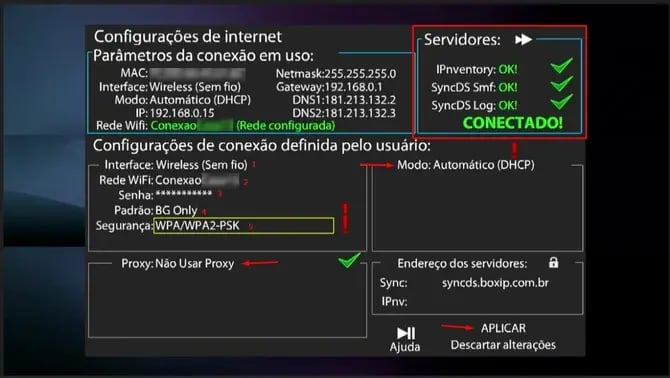
After validating all settings, use the directional buttons on the remote control to navigate to APPLY, select it using the OK/Select button, and wait for the Progic Player to validate all parameters.
Step 4: Internet Setup via Network CableIf the connection will be made using a network cable, configure the following parameters:
- Interface = Wired (Network Cable)
Proxy Settings
(Validate according to local network policies. The configuration below is recommended for networks without advanced settings.)
- Proxy = Do Not Use Proxy
Mode Settings
(Validate according to local network policies. The configuration below is recommended for networks without advanced settings.)
- Mode = Automatic (DHCP)
Once completed, the settings should match the image below:
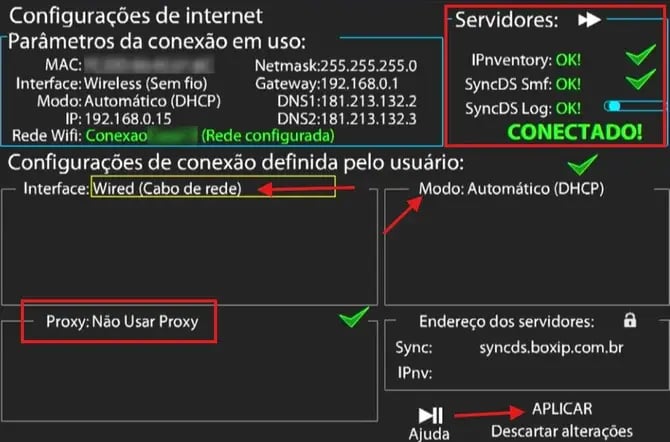
After validating all settings, use the directional buttons on the remote control to navigate to APPLY, select it using the OK/Select button, and wait for the Progic Player to validate all parameters.