
Identifying the Remote Control and the Player
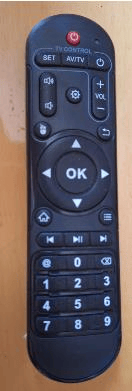
- Locate the player's remote control. (See the attached image to help identify it.)
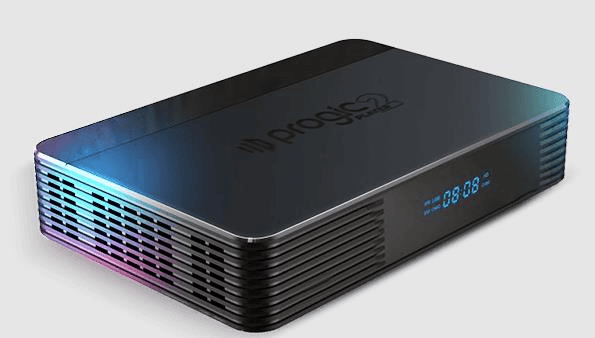
- Stand in front of the TV and locate the player, which is usually installed behind the screen.
Accessing Network Settings
- With the remote control in hand, point it at the player and press the OK button. This will open the Main Menu.
- Use the directional buttons to navigate to Network Settings and press OK on the remote control.
Connection Setup
Option 1: Wi‑Fi Connection
- On the network settings screen, configure the following fields. The Security, Proxy, and Mode settings are optional and depend on your organization's network infrastructure.
- Interface = Wi‑Fi (Wireless Network)
- Password = Local wireless network password
- Security = Select an option compatible with your infrastructure
- Proxy = None or Manual
- Mode = Automatic (DHCP) or Manual (Static IP)
- Select your Wi‑Fi network from the available list.
Make sure all fields are filled in correctly.
After validating all information, click Apply and Restart.
Option 2: Wired Connection (Ethernet)
- Connect the network cable directly to the player.
- Access the network settings and configure the following fields:
- Interface = Cable
- Mode = Automatic (DHCP) or Manual (Static IP)
- Proxy = None or Manual
- Verify that all fields have been filled in correctly.
After validating all information, click Apply and Restart.
If you have any questions or experience difficulties during the installation process, we're here to help! Our Support team is available to assist you with the setup and configuration of your player.