
The Multichannel concept aims to increase the reach of the company's Internal Communication so that it reaches all employees, even those working in the field, those without computer access, or those without access to the screens where the programming is displayed within the company. With Multichannel programming, everyone can receive content to be accessed via smartphone, email, among other possibilities.
Multichannel - How to create and configure this feature within the Manager
Click the Contents >Omnichannel tab. Click the Create Omnichannel button.
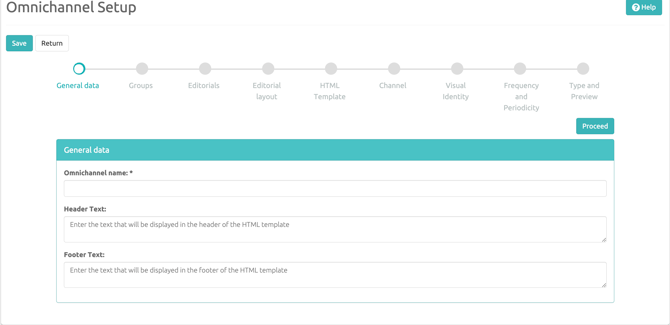
Under General Data, fill in the required information in the Name field (this name is registered only within the Manager), Header Text (this text will appear within the Multichannel layout at the top of the screen; filling it out is not mandatory), and Footer Text (this text will appear at the bottom of the screen; filling it out is not mandatory), then click the Proceed button.
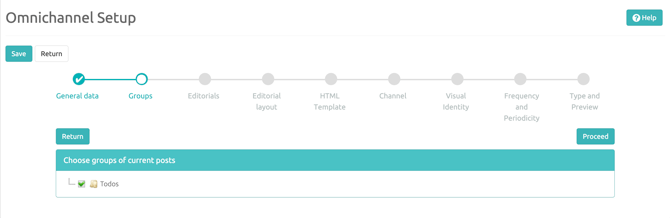
Groups: In this step, select the Groups from which this Multichannel will import posts (the system will not import posts from Editorial sections for Groups that are not selected). After that, click Proceed.
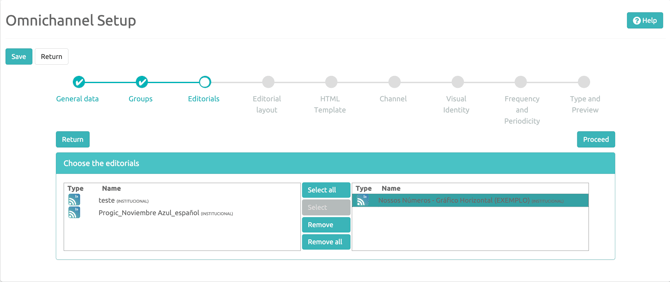
Editorial Sections: In this step, you must select the Editorial sections that will be displayed in the Multichannel (remembering that only posts with the "Current" Status will be displayed). After that, click Proceed.
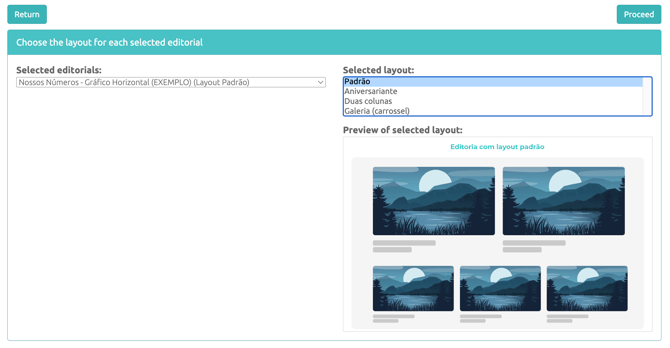
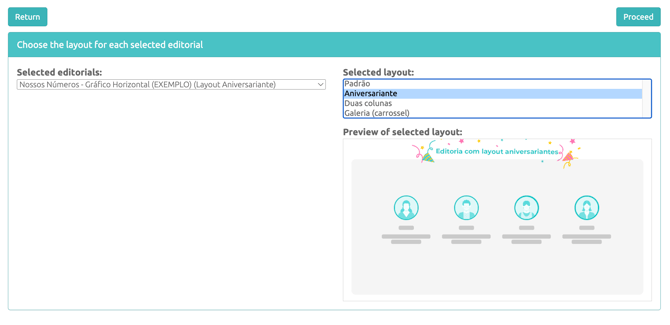
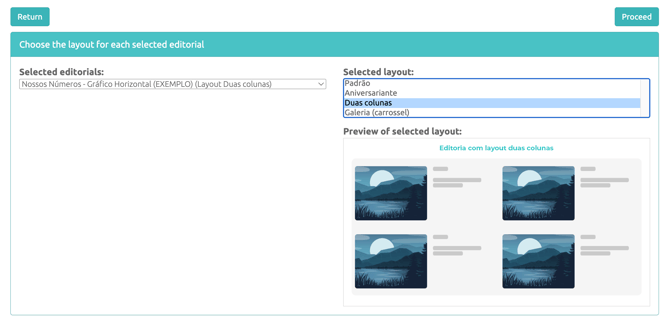
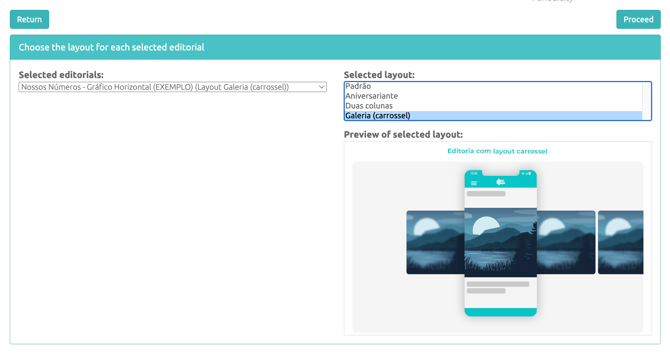
Editorial Layouts: In this step, you can select different layout types for displaying posts in the Multichannel. Note that you must select one Editorial section at a time to choose the layout it will be configured with. There are three layout options (Standard, Birthday, and Two columns). When selecting a different layout, a preview of it will be displayed on the screen. After making the configurations for each of the Editorial sections (if you do not wish to configure the layout of the Editorial sections, you can skip to the next step, and the layout of all sections will be configured with the Standard layout), simply click the Proceed button.
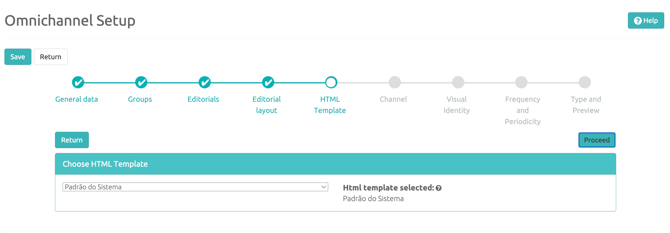
HTML Template: Here you can choose an HTML template model that will be used to display the Multichannel content. If no custom Template has been created by the client, the Manager will use the System's Standard template. Click the Proceed button to go to the next step.
Channel: Here you must select a Channel so that the system imports videos, images, or both from the programming to be displayed in the Multichannel. Remember that you can select the None option so that the system does not import any content. Click Proceed to go to the next step.
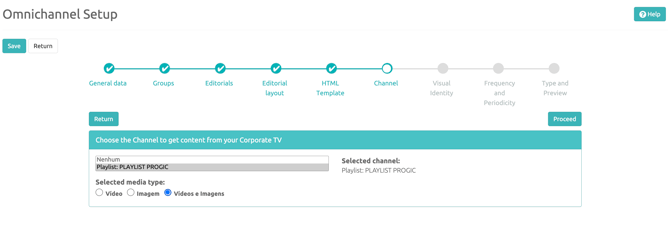
CSS Style: In this configuration, you should only make changes if you have some knowledge of HTML and CSS (CSS stands for Cascading Style Sheets). Here you can alter, via HTML code, the appearance settings of the final result of the created Multichannel (a specific tutorial on this subject will be available soon). In this case, simply click the Proceed button.
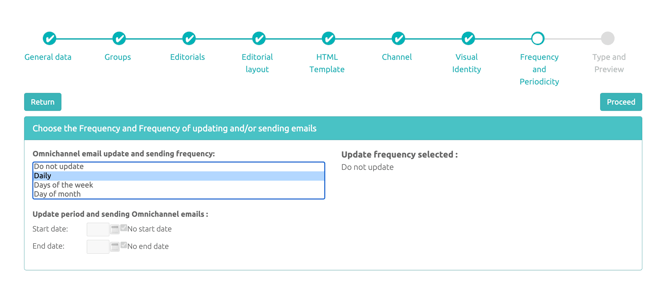
Frequency and Periodicity: In this step, we have several configurations that can be used for the updated sending of Multichannel content.
In the update frequency field, you can select how often the email with content updates will be sent.
- Do not update: No automatic email with updates will be sent;
- Daily: An email will be sent daily with updates;
- Weekly: You can select which days of the week the content update will be sent;
- Monthly: You can select a day of the month to send content updates;
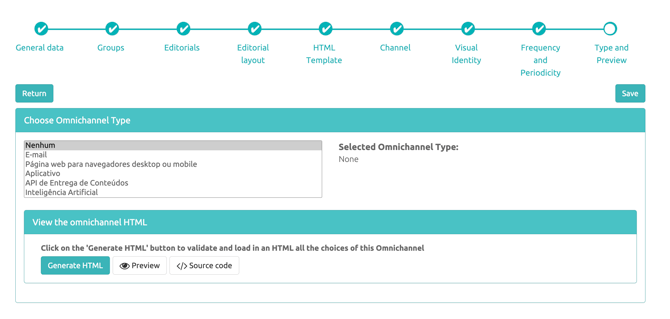
Output and Preview: In this step, determine the type of Multichannel to be created. By default, the Manager leaves the None option pre-selected, but we have the options of Multichannel via Email, Webpage for browsers or mobile, or Image Gallery for download. We will discuss each of the types below:
Multichannel via Email
An email will be generated with the selected content and sent to the email list registered by the user in the Emails field.
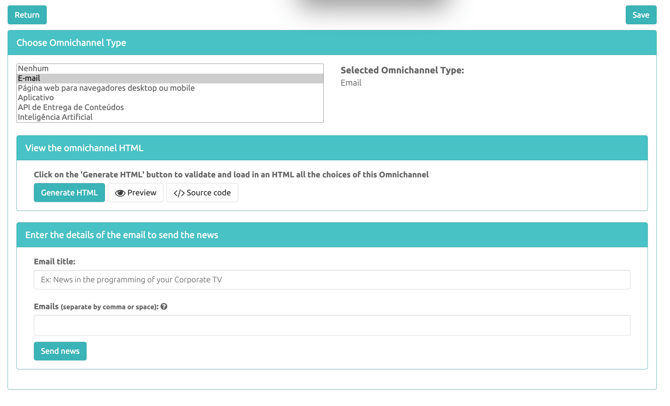
To use this option, you must select the Email type (01), then fill in the Email Title (02) that will be sent (mandatory), fill the Emails field (03) with at least one valid email address, and then click the Generate HTML button (04) for the contents to be organized.
A message will appear indicating that the Multichannel email has been created correctly.
In the process above, we configured and saved the Multichannel via email. You still have the option to get a Preview of what the content will look like by clicking the button  , and if necessary, you can go back to the previous steps and redo any configuration if needed. To finalize the creation of the Multichannel via Email and send it, you must fill in the Emails field with all the addresses that will receive the newsletter:
Then simply click the Send News button, and the contents will be sent to the registered emails.
Multichannel via Webpage for browsers or mobile: In this option, you will generate a URL that can be sent for employees to access the Multichannel contents.
- Select the "Webpage for browsers and mobile" type;
- Give the link file a name;
- Insert a Title for the HTML document that will be generated (cannot contain spaces);
- Click the Generate HTML button (click the Preview button if you want to check how the content will look - optional);
- Click the "Generate webpage link for desktop or mobile browsers" button;
You can now send the URL for employees to access the contents on any device; Finish by clicking the "Save" button.