
There are two ways to assign/link an Editorial Feed to a Creative Template.
In this first step, we will learn the process of assigning an Editorial Feed to a prebuilt Progic template that already has an Editorial Feed linked to it.
(We remind you that this process assumes that the Manager user has already created the Editorial Feed and that it already has content to be displayed)
1 - Linking an Editorial Feed to a Prebuilt Progic Template
Go to the “Content” > “Media” and “Creative” tab.
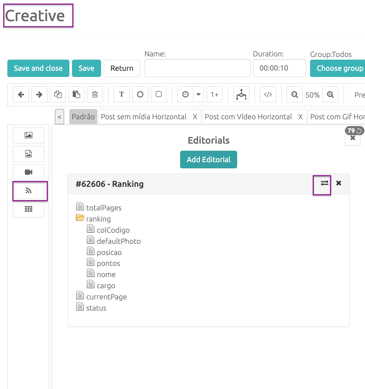
Click the icon to enable the Editorial Feeds in the left column  , and then click the double-arrow icon
  to change the template’s Editorial Feed, removing the example Progic Editorial and inserting the Editorial Feed that you created.
Select the Editorial Feed and confirm the operation by clicking the OK button.
Note that the fields will be automatically configured in the template when inserting the Editorial Feed in this way.
2 - Linking an Editorial Feed to a Template Created Manually from Scratch
Go to the “Content” > “Media” and “Creative” tab.
After creating your template (the template must have at least one background video linked to it so that we can assign the Editorial Feed), you must click on the Editorial Feed menu icon  , which will open the field for you to click the Add Editorial Feed button.
You must select the Editorial Feed in the window that will open and click the OK button to confirm.
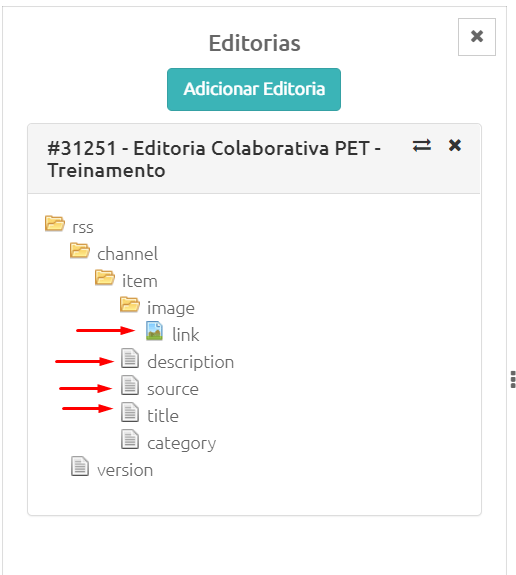
This structure (as shown in the image below) will appear with the Editorial elements:
Note that the fields we usually use in Editorial Feed content posts are:
- Title: Post title field
- Description: Field where the post description text is located
- Source: Source text field
- Image (link): Where the image posted in the Editorial Feed is stored
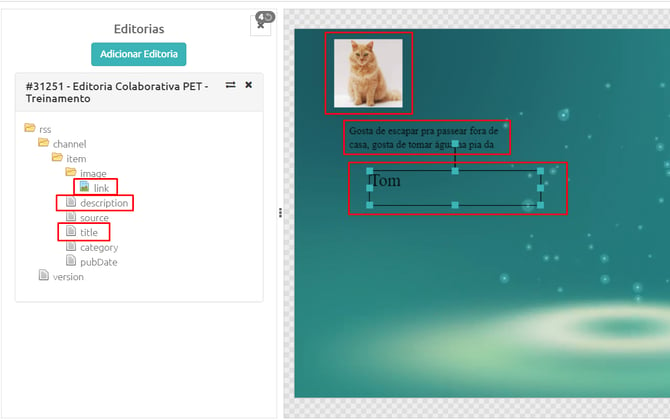
Now you need to click on each of these elements so that they are linked to the Creative (in the example below, we are using only Title, Description, and Image):
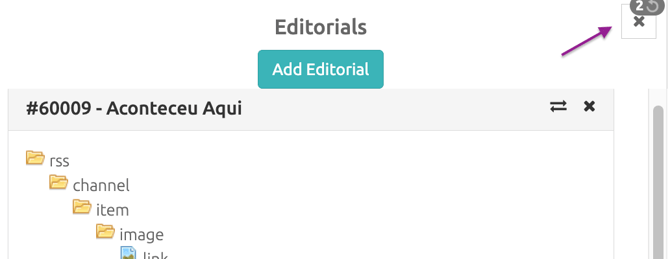
After adding all the Editorial elements to the Template, you can close the Editorial column using the following button.
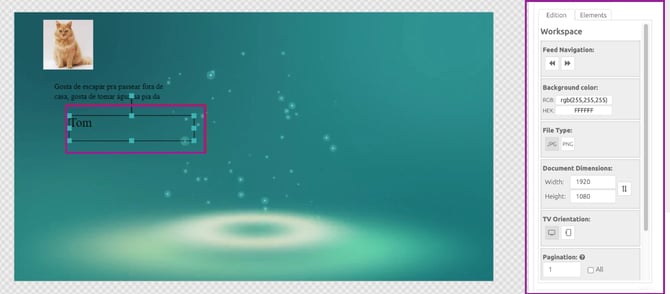
Notice that the elements are unconfigured as they were inserted; therefore, you must select each element and configure it in your Creative layout using the editing tools located in the right column of the screen.
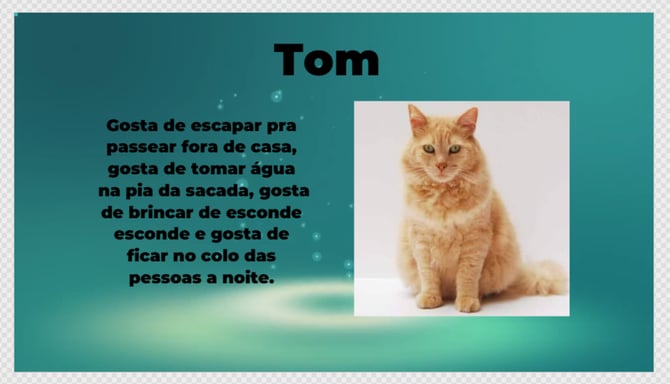
After finishing all configurations, you now have your template fully customized and with an Editorial Feed linked to it!
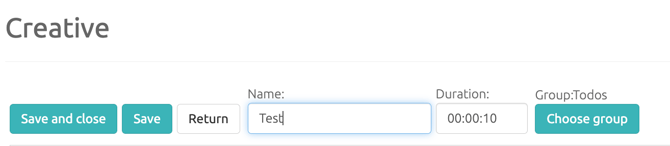
To finish, you must give the Template a name and then click the Save and Close button to return to the Media screen.
Done! Your template is ready to be used with your Editorial Feed — you can insert it into a Playlist, a Sub-playlist, or even a Campaign!
We hope this helped!